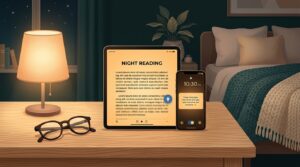
Your eyes feel like sandpaper by 10 p.m. You’ve been scrolling, typing, or streaming for hours, and now every glance at the screen makes you squint. You’ve heard that dark mode night light for tired eyes is the fix, but you’re not sure which setting actually helps, or whether you’ve been doing it wrong this whole time.
Here’s the thing: dark mode and night light solve two completely different problems. One changes your screen’s contrast. The other changes its color temperature.
Most people flip on one, ignore the other, and wonder why their eyes still ache. As of 2026, every major operating system ships with both built in, and they cost nothing to use. The real skill is knowing when to use each one, and that’s what we’re walking through today.
Quick Answer
Use dark mode for low-light reading and interface comfort. Use night light (warm color temperature) to reduce blue light exposure before bed. For most people, the best setup combines both: dark mode for contrast, night light for warmth.
If you have astigmatism or read long-form text, keep dark mode off and rely on warm light alone.
Key Takeaways
- Dark mode reduces glare but can worsen eye strain for people with astigmatism.
- Night light filters blue light, which helps protect melatonin production and sleep quality.
- The two settings work on different mechanisms: contrast (dark mode) versus color temperature (night light).
- OLED displays benefit more from dark mode than LCD screens do.
- The ideal combination depends on your environment, your eyes, and what you’re doing on the screen.
Why Your Eyes Feel Tired at Night (and What Actually Causes It)
Eye strain at night isn’t just about brightness. It’s about three separate things happening at once, and each one needs a different fix.
First, there’s glare. In a dark room, your screen becomes the brightest object in your field of vision. Your pupils dilate to compensate, which lets in more light but also makes the tiny flicker of your display more noticeable.
The result is that your eye muscles work overtime just to keep focus.
Second, there’s accommodation fatigue. Your eyes are constantly adjusting between near focus (the screen) and far focus (everything else in the room). In a dark room, there’s little for your eyes to lock onto beyond the screen, so they stay stuck in one focal range for too long.
That sustained contraction wears out the ciliary muscles, producing that familiar burning or heavy feeling.
Third, there’s blue light exposure. Blue light in the 450, 490 nanometer range suppresses melatonin production, which is the hormone that signals your body to wind down. When you’re glued to a screen at midnight, your brain gets the message that it’s still daytime.
The visual strain and the sleep disruption are separate problems, but they compound each other.
Here’s what most guides leave out: brightness alone isn’t the culprit. A screen that’s too dim forces your eyes to strain harder than a screen that’s too bright. The “just turn down the brightness” advice actually backfires for many people.
What matters is the contrast ratio between the screen and the room around it, and the color temperature of the light you’re emitting. Dark mode and night light address those two variables directly, which is why they work.
If you wear glasses for astigmatism, the night-time strain can be even worse. Dark mode with its light text on dark backgrounds makes your pupils dilate more, dispersing light inside the eye and creating halos or ghosting around text. That’s not your imagination.
It’s a well-documented optical effect.
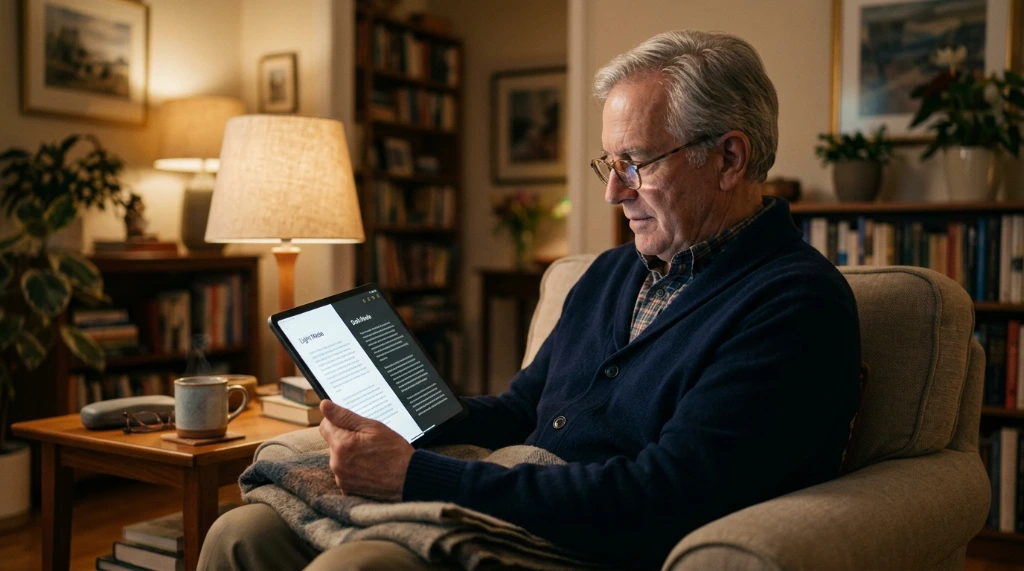
Dark Mode vs. Night Light: What Each One Really Does
Dark mode is a contrast inversion. It flips the interface so you’re looking at light text on a dark background instead of dark text on a white one. It reduces the total amount of light emitted from your screen because most pixels are rendered in black or near-black.
On OLED displays, black pixels are literally turned off, which saves battery and cuts light output dramatically. On LCD screens, the backlight stays on no matter what, so the energy savings and the brightness reduction are minimal.
Dark mode also shifts the perceived contrast. White text on pure black is actually harder to read for many people, because of a visual artifact called halation. The bright text bleeds into the dark background, creating a fuzzy glow around the letters.
That’s why most dark mode implementations, like Android’s dark theme or iOS’s dark mode, use dark gray (#121212) rather than pure black. It reduces halation while keeping the low-light benefits.
Night light, also called Night Shift on Apple devices or Night Light on Windows, does something entirely different. It changes the color temperature of the white point. During the day, displays emit light at around 6500K, which looks cool and bluish.
Night light shifts that down to around 4200K, then 3400K, and as far as 2700K or lower, which looks warm and amber. The idea is to mimic the natural progression of sunlight, which gets warmer as the day goes on.
Here’s a common misconception worth clearing up: night light does not reduce screen brightness. It only changes the color of the light. You still get the same overall luminance, just in a warmer tint.
That means it does nothing for glare, nothing for contrast, and nothing for the brightness-based strain. Its only job is to reduce blue light exposure, which helps your circadian rhythm.
If you’re trying to reduce eye fatigue from focusing, dark mode is the more relevant tool. If you’re trying to protect your sleep, night light is the one that matters. They are not interchangeable, and using one instead of the other leaves a gap.
Quick Answer: Which One Should You Use?
The short version is: it depends on what you’re doing and what kind of eyes you have.
- If you’re reading long articles, ebooks, or documents at night, use night light with a normal or light theme. Dark backgrounds with light text are harder to read for extended periods, even in low-light conditions. Your eyes track better with high contrast dark-on-light text.
- If you’re browsing, using apps, or working in an interface-heavy environment, dark mode is comfortable. Menus, buttons, and UI chrome are easier on the eyes when they’re not blasting bright white light.
- If you have astigmatism, avoid pure dark mode. Use night light only, and keep the interface in light mode. Aggregate user reports and optometry guidance both point to reduced halation and fewer ghosting artifacts with dark-on-light text.
- If you’re on an OLED phone or laptop, dark mode is a clear win. It reduces power draw and produces truly deep blacks, which feels significantly easier on the eyes in a dark room.
- If you’re on an older LCD screen, dark mode saves very little power and does little to reduce light output. Night light plus a reasonable brightness setting is your best move.
For most people, the best setup is a combination: dark mode for apps and menus, night light for the color temperature, and a brightness level that matches your room. That covers contrast, blue light, and overall luminance at once.
How to Set Up the Right Combo for Your Devices (Windows, macOS, Android, iOS)
Every major operating system has these settings built in. No third-party apps required, no subscriptions, no hassle. Here’s how to get it right on each platform.
Windows 10 and 11
Windows calls its blue light filter Night Light, and it’s tucked away in Display settings.
- Open Settings > System > Display.
- Click Night light settings.
- Toggle Schedule night light to On.
- Choose Sunset to sunrise or set a custom time window.
- Drag the Strength slider to your preferred warmth. Most people settle between 30 and 50 percent. Anything above that starts to look seriously orange.
For dark mode, go to Settings > Personalization > Colors, then choose Dark under “Choose your default app mode.” You can also enable dark mode per-app, but the system-wide toggle covers most ground.
Pro tip: If you do color-sensitive work like photo editing, set the Night Light strength low (around 10, 20 percent) or schedule it to turn off when you’re editing. The warm tint is harmless for everyday use, but it can skew your perception of colors.
macOS and iOS
Apple calls its filter Night Shift, and it’s available on both Macs and iPhones.
On a Mac: Go to System Settings > Displays > Night Shift. You can set a custom schedule or enable it manually. The Color Temperature slider moves between “Less Warm” and “More Warm.”
On an iPhone or iPad: Go to Settings > Display & Brightness > Night Shift. Set Scheduled to sunset to sunrise, or pick your own times. Electronically, Night Shift and True Tone are separate features, but True Tone adjusts color to match ambient lighting, which works well during the day.
For dark mode on Mac: System Settings > Appearance > Dark. On iOS: Settings > Display & Brightness > Dark. You can also set it to toggle automatically at sunset.
One underappreciated iOS feature: Night Shift plus Reduce White Point. Reduce White Point cuts down the intensity of bright colors without changing the actual brightness. It’s in Accessibility settings, and it’s excellent for late-night reading.
Many users find that combining Reduce White Point (set to about 50, 70 percent) with Night Shift creates a much more comfortable screen than dark mode alone.
Android
Android’s night light is called Night Light on Pixel devices, but Samsung calls it Eye Comfort Shield, OnePlus calls it Night Mode, and other manufacturers have their own names. The setting is usually in Settings > Display and goes by something close to “blue light filter” or “comfort.”
Samsung’s Eye Comfort Shield has an adaptive mode that gradually shifts the color temperature throughout the evening, which feels more natural than an abrupt change. Google Pixel devices let you schedule Night Light to sunset-to-sunrise or custom times.
Android dark mode is in Settings > Display > Dark theme. On Samsung, it’s Settings > Display > Dark mode. Most current Android apps respect the system setting.
Pro tip: Android’s Bedtime Mode (on Pixel devices) combines dark theme, grayscale, and Do Not Disturb. Grayscale removes all color from the screen, which makes the device dramatically less engaging and easier to put down. It’s worth trying if you find yourself scrolling for hours at night.
Consistency across devices
If you’re kicking the habit of checking your phone in bed, make the settings consistent across everything. Use the same schedule for Night Light on Windows, Night Shift on iOS, and Eye Comfort Shield on Android. A mismatch makes the warm filter feel wrong when you switch between devices.
When Dark Mode Makes Things Worse (and What to Do Instead)
Dark mode isn’t a universal win. For some people, it actively increases eye strain, and knowing when to skip it matters as much as knowing how to enable it.
If you have astigmatism, dark mode can be a genuine problem. The light-on-dark contrast causes your pupils to dilate more, which spreads light unevenly across the lens and creates halation around text. Letters look blurry, ghosted, or glowy.
The American Academy of Ophthalmology notes that some patients report more discomfort with dark themes, and the solution is simple: switch back to light mode and rely on night light for warmth instead.
If you read long-form content, dark mode adds friction. Your eyes naturally prefer dark text on a light background for sustained reading, which is why books and newspapers have looked that way for centuries. E-readers with dark mode, like the Kindle app on OLED phones, can feel comfortable for a few pages, but extended reading sessions often produce more fatigue in dark mode.
If your screen is an LCD, dark mode does little for your eyes. The backlight stays on regardless, so you’re not reducing brightness or glare. You’re just changing the colors.
On these displays, a warm night light filter plus reduced brightness is more effective than dark mode.
If you have light sensitivity or migraine issues, high-contrast interfaces can trigger discomfort. The harsh boundary between bright text and dark background is a common visual stressor. Grayscale mode, which removes color entirely, often works better for this group.
It’s available on both iOS and Android under accessibility settings.
The workaround when dark mode feels wrong: keep light mode, set night light to a warmer temperature, and lower brightness to match your room. That combination reduces blue light and glare without the contrast issues that dark mode introduces.
Building a Simple Nighttime Screen Routine That Works
Settings alone won’t fix your eyes if you’re still staring at a screen for six hours straight. The best setup in the world can’t compensate for zero breaks and poor habits. A realistic routine requires three things: scheduling, breaks, and environmental light.
Schedule your filters. Set night light to turn on automatically at sunset or a fixed time like 8 p.m. If you’re relying on memory, you’ll forget half the time. iOS Night Shift, Windows Night Light, and Android’s eye comfort modes all support automatic schedules. Set them once and let them run.
Take breaks using the 20-20-20 rule. Every 20 minutes, look at something 20 feet away for at least 20 seconds. The rule gives your ciliary muscles a rest from sustained near-focus. Apps like Time Out on macOS or the built-in reminders on Android can help nudge you, but a simple phone timer works just as well.
Match your room lighting. Your screen should never be the brightest object in your field of vision. A dim lamp behind your monitor or phone creates ambient light that reduces contrast strain. Ideally, the room is lit at about 50 to 60 percent of your screen’s brightness.
In a pitch-black bedroom, even a well-configured screen forces your eyes to work harder than necessary.
Add a wind-down window. Research on circadian rhythms suggests limiting blue light exposure in the hour before bed. That doesn’t mean you need to stop using your screen entirely, but tapering your use helps. If you’re reading on your phone in bed, consider an e-reader with a warm light instead.
Devices like the Kindle Paperwhite are specifically designed for low-light reading without the blue light problem.
Frequently Asked Questions
Does dark mode actually save battery life?
Yes, but only on OLED displays. OLED pixels individually emit light, so black pixels are simply turned off. In our research, dark mode on OLED screens reduced power draw by roughly 30 to 50 percent for typical app usage.
On older LCD screens with a constant backlight, the savings are negligible. If you’re on an OLED phone, dark mode is a legitimate battery saver.
Should I use dark mode during the day too?
Dark mode is most useful in low-light environments. During the day, bright ambient light makes dark interfaces harder to read because glare and reflections on the screen are more visible. Dark-on-light interfaces handle daylight much better.
A common approach is to use light mode during the day, dark mode after sunset, and the automatic schedule on your device to switch between them.
Is blue light from screens harmful to eyes?
The visual strain is real, but the long-term damage claims are overstated. The American Academy of Ophthalmology states there is no scientific evidence that blue light from device screens causes permanent eye damage. The bigger issue is sleep disruption, since blue light suppresses melatonin production.
Night light helps with that, but limiting screen time before bed is more effective than any filter.
Can I use night light all day?
You can, but we don’t recommend it. Using a warm filter during the day makes your screen look yellow and reduces color accuracy. It also means your eyes don’t get the benefit of a distinct circadian signal.
Your body needs bright, blue-ish light during the day to stay alert and a shift to warmer light at night. Keep night light on its schedule rather than running it constantly.
Why does my screen still feel bright even with dark mode and night light on?
Both settings affect color and contrast, but neither directly controls brightness. If the screen still feels harsh, lower the actual brightness slider. On iOS, you can also enable Reduce White Point in accessibility settings, which dims bright colors without changing backlight levels.
That combination, plus a warm night light filter, delivers the closest thing to a natural dimmed display.
What’s better for reading at night, dark mode or light mode?
Light mode with a warm night light filter wins for long-form reading. Dark text on a white or cream background provides the highest contrast for your eyes to track and reduces halation. Dark mode is better for brief interface interaction, like checking messages or switching apps, because it makes the whole screen less intrusive in a dark room.
Match the mode to the activity.
Final Verdict: Your Best Setup for Tired Eyes
The ideal nighttime screen setup isn’t dark mode alone, and it isn’t night light alone. It’s the combination of the two, tuned to your device, your environment, and your particular eyes.
For most people, that means dark mode for apps and menus, night light set to a warm temperature after sunset, and a reasonable brightness level. On OLED displays, dark mode doubles as a battery saver. On LCD screens, focus your energy on the warm filter and brightness settings.
If you have astigmatism or do a lot of long-form reading, skip dark mode and rely on the warm filter plus light mode.
The most important variable isn’t any single setting. It’s consistency. Set your schedules once, let them run automatically, and pair them with regular breaks and proper room lighting.
Your eyes will feel the difference by the end of the week. If you want help getting the settings dialed in on your phone or laptop, take a look at our guide on making your screen easier on tired eyes.