
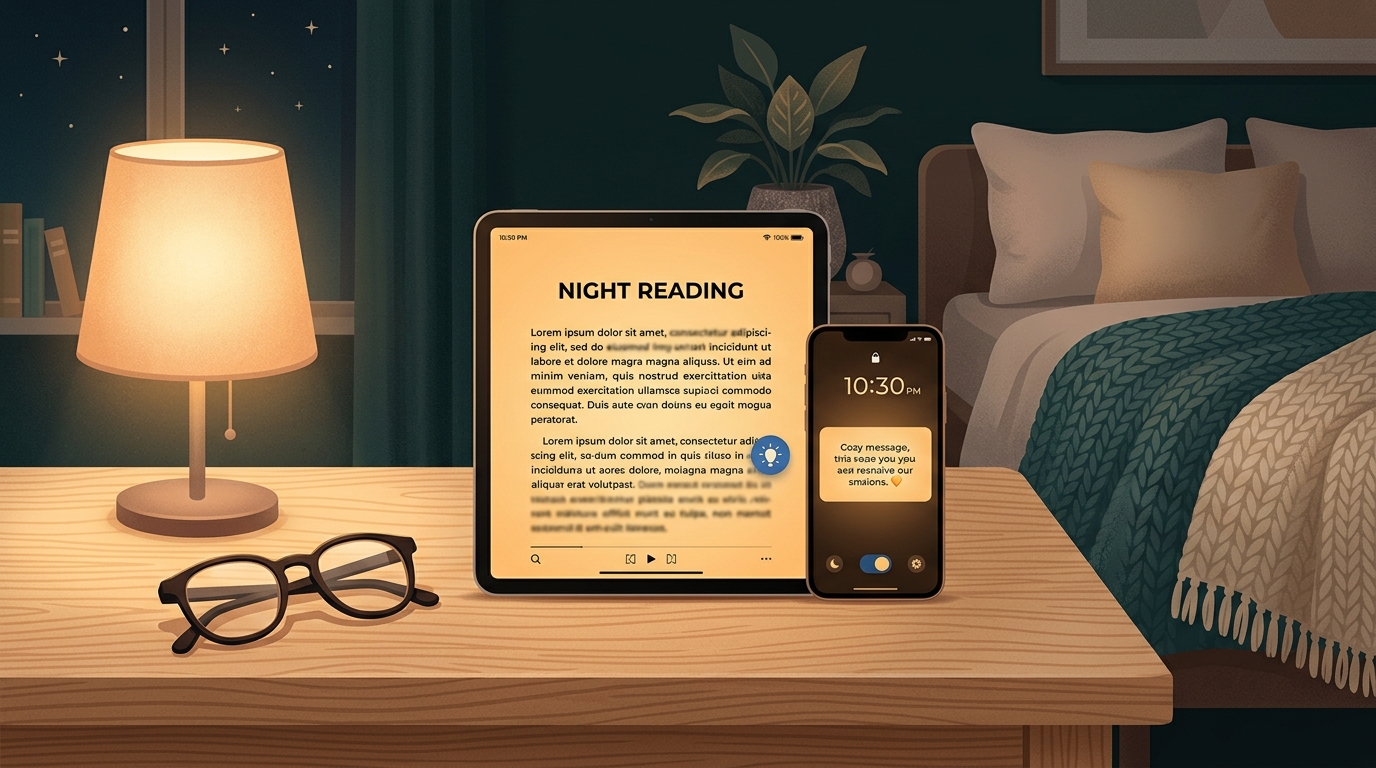
Do your eyes feel dry, tired, or watery after looking at your tablet or smartphone in the evening? You are not alone. Modern digital screens emit a sharp, blue-toned white light that is harsh on eyes — especially in dim rooms.
Fortunately, both Apple and Android devices include built-in features that soften screen glare, tint the display to a soothing warm amber, and reduce fatigue with just two taps.
1. Turn On Warm Night Light (The Best Fix for Eye Strain)
This setting filters out harsh blue light and replaces it with a gentle, sunset-like warm glow that is much easier on the eyes before bedtime.
On iPhone and iPad (Night Shift):
- Open the Settings app.
- Scroll down and tap Display & Brightness.
- Tap Night Shift.
- Switch on Scheduled (Sunset to Sunrise) or turn on Manually Enable Until Tomorrow.
- Slide the color temperature bar toward More Warm until your eyes feel comfortable.
On Android and Samsung Phones (Eye Comfort Shield):
- Swipe down from the very top of your screen twice to reveal the Quick Settings panel.
- Look for the icon labeled Eye Comfort Shield or Night Light.
- Tap it to turn it on immediately. Press and hold the button to set it on an automatic evening schedule.
2. Dark Mode vs. Light Mode: Which is Better?
Dark Mode turns your screen’s background black and makes the letters white. Here is how to decide which to use:
- Use Dark Mode if: Bright white screens hurt your eyes at night, or if glare causes headaches.
- Keep Light Mode if: You have astigmatism or cataracts. Some people find white letters on black backgrounds can create a slight “halo” or ghosting effect. Test both for a day to see what feels best for your vision.
3. Turn Up “True Tone” (Apple Users)
If you use an iPad or iPhone, go to Settings → Display & Brightness and make sure True Tone is toggled ON. This automatically measures the light in your room and matches the screen’s paper warmth to your environment, making text look more like a physical book page.