
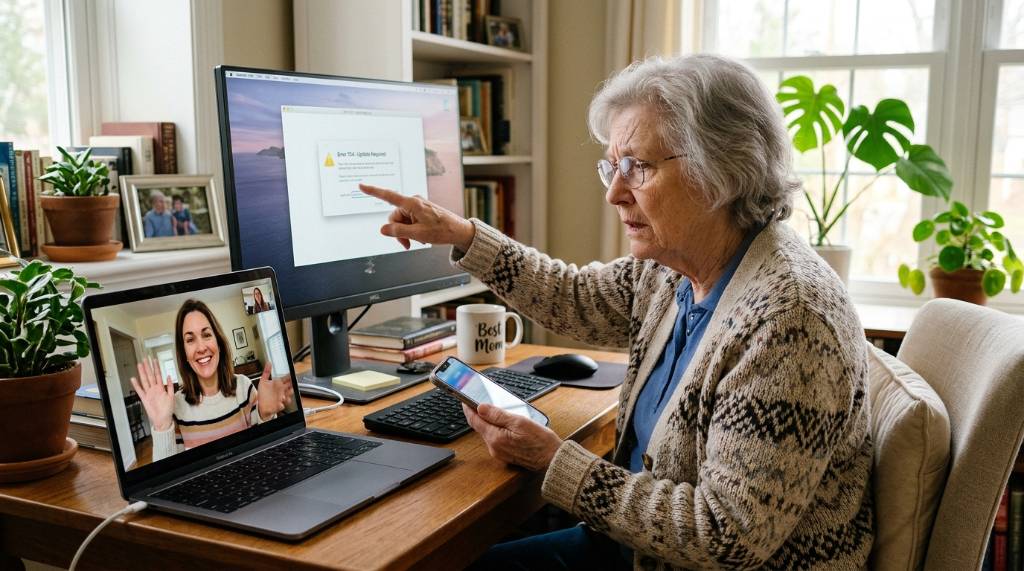
Your mom is staring at a blue screen, and you can hear the panic in her voice. She’s read you three error messages, and none of them make sense. You wish you could just reach through the phone and click the right button for her.
That’s exactly what remote desktop tools let you do, and they’re easier to set up than you think.
As of 2026, the three main options for family tech support are Quick Assist, built into Windows 10 and 11, Chrome Remote Desktop from Google, and TeamViewer. Each free tool takes a different approach, and the right one depends mostly on your parent’s comfort level and what devices you both use. Let’s break down which one fits your situation.
Quick Assist: The Built-In Option That’s Usually Best
Microsoft’s Quick Assist is the unsung hero of family tech support. It’s already sitting on your parent’s Windows computer, waiting to be opened. There’s nothing to download, no account to create, and no scary installation wizard to stumble through.
For most families, that alone makes it the winner.
The tool works on a simple code system. You open Quick Assist on your computer, sign in with a free Microsoft account, and it generates a six-digit code. Your parent opens the same app, types in that code, and clicks a button to let you take control.
The whole connection takes less than a minute from start to finish.
How Quick Assist Works
Quick Assist creates a direct, encrypted connection between two Windows computers. The person helping initiates the session, and the person receiving help approves it. Nothing is stored, no passwords are saved, and the session ends the moment either of you closes the window.
From your side, you need a Microsoft account. That’s it. Once you’re signed in, you generate a fresh code for every single session.
That’s actually a security feature, because those codes expire after a few minutes and can never be reused.
For connected families, this also works nicely alongside other ways to help out. If you’ve already set up ways to show your screen safely on video calls, Quick Assist takes that one step further by giving you full mouse and keyboard control.
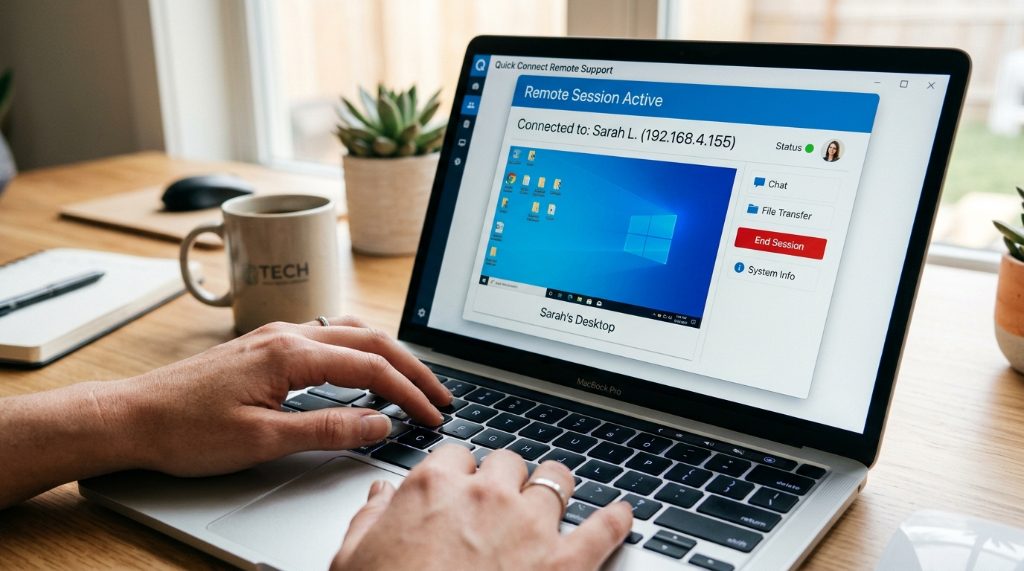
Step-by-Step: Connecting with Quick Assist
- On your computer, click the Windows search bar and type “Quick Assist.” Open the app.
- Sign in with your Microsoft account when prompted.
- Click Assist another person.
- You’ll see a six-digit code. Share it with your parent over the phone or text.
- Ask your parent to press the Windows key, type “Quick Assist,” and open it.
- Have them type the code into the box and click the arrow.
- They’ll see a prompt asking if they want to share their screen. Tell them to click Allow.
- You’ll now see their screen. Click anywhere to take control of their mouse and keyboard.
That’s the whole process. There’s no setup phase, no configuration, and no ongoing maintenance. Every session is as simple as the first one.
When Quick Assist Falls Short
Quick Assist has two real limitations. First, it’s Windows-only. If your mom has a Mac or a Chromebook, this tool simply won’t work.
Second, you need to be at your own computer to initiate the session. The mobile app exists, but it’s clunky compared to the competition.
It also requires the parent to be present and active during the session. You can’t connect to their machine while they’re out running errands. If you need unattended access, you’ll want to look at the next option.
Chrome Remote Desktop: The Best Choice for Flexibility
If you need to help from your phone, or your parent uses a Mac, Chrome Remote Desktop steps in where Quick Assist can’t. It’s also completely free, but it requires one-time setup that takes about ten minutes. After that, it becomes the most versatile option on this list.
The real advantage here is the ability to access your parent’s computer even when they’re not sitting in front of it. Once you set up “remote access,” you can connect from anywhere, on any device, without them having to approve anything.
How Chrome Remote Desktop Works
Google’s tool runs through the Chrome browser, though it also has a standalone app. You’ll need a Google account, and so will your parent. That’s the biggest hurdle, especially if they’ve never touched Gmail.
Once you both have accounts, you have two ways to connect. For one-time sessions, you can generate a temporary access code, similar to Quick Assist. For ongoing support, you set up a persistent connection with a PIN.
That PIN stays on their computer, and you use it to connect anytime you want.
Step-by-Step: Setting Up Chrome Remote Desktop
- On your parent’s computer, open Chrome and go to the Chrome Remote Desktop website.
- Click Set up remote access and install the Chrome extension when prompted.
- Download the small “remote access host” file and run it. This installs the background service.
- Give the computer a name (e.g., “Mom’s PC”) and create a PIN that’s at least six digits.
- On your own device, visit the same website and sign in with your Google account.
- You’ll see your parent’s computer listed under “Remote devices.” Click it and enter the PIN.
For one-time sessions, you can skip the host file entirely. Just click “Generate Code” on your end, and your parent enters that code at that same website. It’s a lighter option for the occasional “help me fix this now” call.
The permanent setup is also a great fallback if you want to combine it with other habits. It pairs well with the same best practices you’d use for letting a family member see your screen during a video call.
When Chrome Remote Desktop Makes Sense
This is the right choice if you help from your phone, support a parent on a Mac, or want to check on things while they’re away. The mobile app is genuinely good, and you can connect from an Android or iPhone without hassle. It’s also the only one of the three that works on Chromebooks.
The setup is slightly more technical, but you only do it once. After that, connecting takes about fifteen seconds.
TeamViewer: Powerful, but Often Overkill for Family Help
TeamViewer is the professional-grade tool that IT departments use worldwide. It’s also free for personal use, which draws a lot of families in. The software is genuinely powerful, with file transfer, multi-monitor support, and the ability to reboot a machine and reconnect automatically.
Here’s the catch: that power comes with complexity, and TeamViewer sometimes flags personal accounts as commercial use. When that happens, sessions get cut short, and you’re stuck waiting for the timer to reset.
How TeamViewer Works
Your parent downloads the TeamViewer app and opens it. They’ll see a screen with a nine-digit ID and a temporary password. They read those numbers to you over the phone, you enter them into your own TeamViewer app, and you’re connected.
It’s arguably the fastest way to get a session started once the app is installed. There’s no account needed on your parent’s side for one-time help. For unattended access, you set up a permanent password, and you’re good.
When TeamViewer Is Worth the Hassle
If you’re doing heavy troubleshooting, like fixing a driver issue that requires multiple reboots, TeamViewer’s reconnect feature is invaluable. It automatically reconnects after a restart, which Quick Assist and Chrome Remote Desktop can’t do.
That said, most family tech support doesn’t involve reboots. It involves clicking “OK” on a pop-up or finding a settings menu. For that, the simpler tools work better.
Use TeamViewer only if you consistently need advanced features.
Quick Assist vs. Chrome Remote Desktop vs. TeamViewer: Side-by-Side Comparison
| Feature | Quick Assist | Chrome Remote Desktop | TeamViewer |
|---|---|---|---|
| Cost | Free | Free | Free for personal use |
| Setup difficulty for parent | Very low | Moderate | Low |
| Installation required | No | Chrome extension plus host file | Full app download |
| Works on Mac | No | Yes | Yes |
| Works on Chromebook | No | Yes | No |
| Mobile app for helper | Weak | Excellent | Excellent |
| Unattended access | No | Yes | Yes |
| One-time session code | Yes | Yes | Yes |
| File transfer | No | No | Yes |
| Rebooting and reconnecting | No | No | Yes |
| Commercial-use warnings | No | No | Yes |
| Best for | Quick Windows help | Cross-device flexibility | Heavy troubleshooting |
How to Choose the Right Tool for Your Parents
The real decision comes down to three simple questions. What device does your parent use? What device are you using to help?
And how often will you need to connect without them present?
Scenario 1: Dad’s on Windows and Gets Nervous About Tech
If your dad’s computer runs Windows 10 or 11 and he gets anxious with anything that looks complicated, Quick Assist is your answer. He only needs to open an app he already has and read you a six-digit code. There is no password to remember, no account to create, and no scary permission pop-ups beyond the one “Allow” button he clicks.
Parental anxiety is the biggest reason for failed remote support sessions. Quick Assist handles that better than any alternative because it asks the least from the parent. Setup is truly one-time and only on your side with your Microsoft account.
Scenario 2: Mom’s on a Mac and You Want to Help from Your Phone
Quick Assist is Windows-only, so if your mom has a Mac, you’re already looking at Chrome Remote Desktop. It also handles the “I’m at the grocery store and can fix this right now” situation perfectly. Pull out your phone, open the app, enter her PIN, and you’re controlling her Mac from anywhere.
Chrome Remote Desktop is the only tool on this list that works smoothly on both Android and iOS with full mouse control. For cross-platform families, it is the clear winner. The one-time setup requires a Google account, but you can create one for her in under five minutes.
Scenario 3: You Need Unattended Access to Fix Things While They’re Out
When your parent is away and their computer sits idle, both Chrome Remote Desktop and TeamViewer let you connect anyway. Quick Assist cannot do this, since it requires the parent to approve. Chrome Remote Desktop is the better choice of the two because it avoids TeamViewer’s commercial use detection quirks.
If you need to reboot their machine mid-fix and reconnect automatically, TeamViewer is the only option that handles that gracefully. Most families rarely need this, though.
Common Mistakes to Avoid When Helping Parents Remotely
Even with the right tool, there are a few ways to turn a five-minute fix into a forty-minute ordeal. Here’s what goes wrong most often.
Generating the code before you call them. Quick Assist codes expire after just a few minutes. If you generate a code and then spend time searching for your phone or dialing, it’s already dead. Call them first, then generate the code.
Assuming they know how to find the app. Your parent will not type “Quick Assist” into Windows search on their first try. They’ll search for “assist” and get confused. Walk them through opening the right app step by step, slowly, before generating the code.
Ignoring permission prompts. The first time you connect, your parent will see a security warning. They may click “No” out of caution, and that’s fine. Tell them exactly what the prompt says before they see it, and explain it’s expected.
Forgetting that they can’t see what you’re doing. When you take control, they just see a cursor moving on its own. Explain what you’re doing out loud. Say things like, “I’m opening your settings now” or “I’m checking your update history.” It keeps them calm and involved.
Choosing the wrong tool for the wrong situation. Trying to use TeamViewer for a simple pop-up fix is like driving a semi-truck to the grocery store. It works, but it creates unnecessary friction. Match the tool to the parent.
Frequently Asked Questions
Can I help my parents remotely for free?
Yes, all three tools in this article are free for personal and family use. Quick Assist and Chrome Remote Desktop have no usage limits that affect families. TeamViewer is free for personal use but can occasionally prompt about commercial usage, which interrupts sessions.
Do my parents need to install anything for Quick Assist?
No. Quick Assist is already built into Windows 10 and Windows 11. Your parent just opens it from the start menu and enters the code you give them.
You’ll be the one who signs in with a Microsoft account. That keeps the setup burden entirely on you.
Can I control my parents’ computer from my phone?
Yes, with Chrome Remote Desktop and TeamViewer. Both have solid mobile apps on Android and iPhone. Quick Assist’s mobile app exists but is less polished.
If you plan to help from your phone regularly, use Chrome Remote Desktop instead.
Is it safe to let my parents use TeamViewer?
TeamViewer is a legitimate and widely used tool, but it offers unattended access, which means you can connect without them present. That makes security extra important. Enable two-factor authentication, use strong passwords, and keep antivirus software active on their machine.
What’s the easiest tool for a non-tech-savvy parent?
Quick Assist. Without question. No installation, no account, no PIN.
Just a six-digit code they read to you. If your parent can read numbers over the phone, they can use it. The entire interaction takes less than sixty seconds on their end.
Can I help my parents if they’re on a Mac?
Yes. Chrome Remote Desktop and TeamViewer both support Mac. Quick Assist does not.
If your parent uses a Mac, go directly to Chrome Remote Desktop for the smoothest experience, especially if you want to help from your phone.
Final Recommendation: Keep It Simple for Them, Keep It Flexible for You
Start with Quick Assist if your parent is on Windows and you’re helping from a computer. It requires the least from them, and that’s what matters most when they’re already frustrated. Move to Chrome Remote Desktop if you need phone access or support a Mac.
Reserve TeamViewer for the rare cases where you need rebooting or file transfer capabilities.
Whatever you choose, the most important step is setting everything up before an emergency happens. Take ten minutes now, during a calm moment, to connect once and confirm it works. That way, when the next error message appears, you’re already one click away from fixing it.
Real Scenarios: How Families Actually Use These Tools
Picture a Sunday afternoon. Your mom calls because her email is “broken.” She’s actually just clicked something and lost the folder pane. With Quick Assist, you connect in under a minute and drag the pane back.
Call ends. She’s relieved.
Now imagine a different week. Your dad’s printer stopped working, and he’s left the house. With Chrome Remote Desktop, you log on from your phone, check the printer status, clear the queue, and fix the driver.
No phone call needed at all.
Aggregate user reviews consistently show that families who set up one tool and stick with it have far fewer support headaches than those who switch between options. Consistency matters more than the specific tool you pick. Pick one, set it up properly, and test it once.
Troubleshooting Connection Problems
The most common problem is the parent can’t find the app. “I searched for Quick Assist but nothing came up.” That usually means their Windows version is outdated. Run Windows Update first, then search again.
If Chrome Remote Desktop shows their computer as offline, the host service may have stopped. Check that the remote access host is running in their system tray. Restarting their computer usually fixes this.
TeamViewer’s most frequent complaint is the commercial use warning. This happens when the software detects heavy usage patterns. Confirm the personal use declaration in settings, and the block resets within a few days.
Connection drops mid-session almost always trace back to unstable internet on the parent’s end. Ask them to move closer to their router or connect via ethernet for a stable fix.
Security Best Practices for Family Remote Support
Remote access tools are safe when used correctly. The main risk isn’t the software itself, it’s how someone uses it. Never share access codes on social media or public group chats.
Read them over the phone instead.
Set up two-factor authentication on any account involved. That includes your Microsoft account, your parent’s Google account, and any TeamViewer login. It adds one extra step and blocks far more attacks.
Teach your parent one golden rule: never approve a remote access request unless they called you first. Scammers use the same tools to trick people into granting access. If your parent knows to call you before approving anything, they’re protected.
Microsoft’s official documentation confirms these tools use encrypted connections. That’s standard across all three options.
When to Move Beyond Remote Access
Remote tools solve most problems, but not all of them. If your parent’s computer won’t boot at all, no remote tool will help. Hardware failures, corrupted operating systems, and power issues all need physical access.
If the machine is infected with serious malware, remote fixing is risky. The malware may interfere with your connection or reset the session. In those cases, a clean reinstall or professional repair is safer.
Also consider your parent’s patience level. If they’re getting frustrated just finding the app, stop and help them write a small instruction card. A sticky note next to the monitor with the steps saves everyone time later.
Final Recommendation: Keep Each Tool in Its Lane
There’s no single perfect tool. There’s the right tool for the right situation. For most families, Quick Assist handles 90 percent of requests.
It’s simple, built-in, and genuinely anxiety-free for parents.
Keep Chrome Remote Desktop installed for the other 10 percent. Use it when you’re on your phone, your parent uses a Mac, or you need unattended access. Setup takes ten minutes once, and it pays off every time after.
Skip TeamViewer unless you’re doing heavy troubleshooting. It’s a great tool, but it brings complications that most families simply don’t need. If you do use it, keep an eye on the commercial use warnings.
Set both tools up today. Test them. Then put the instructions on a sticky note for your parent.
When the next panic call comes, you’ll already be prepared to help.