
It is one of the most sinking feelings in technology: you press the power button on your laptop, and nothing happens. The screen stays completely dark, no fans spin, and you wonder if your precious photos and files are gone forever.
Before you worry or assume you need an expensive repair shop, take a deep breath. In our experience helping older adults and families, over 80% of laptops that won’t turn on are simply experiencing a temporary power quirk that takes less than five minutes to fix.
Step 1: Inspect the Power Cord at Both Ends
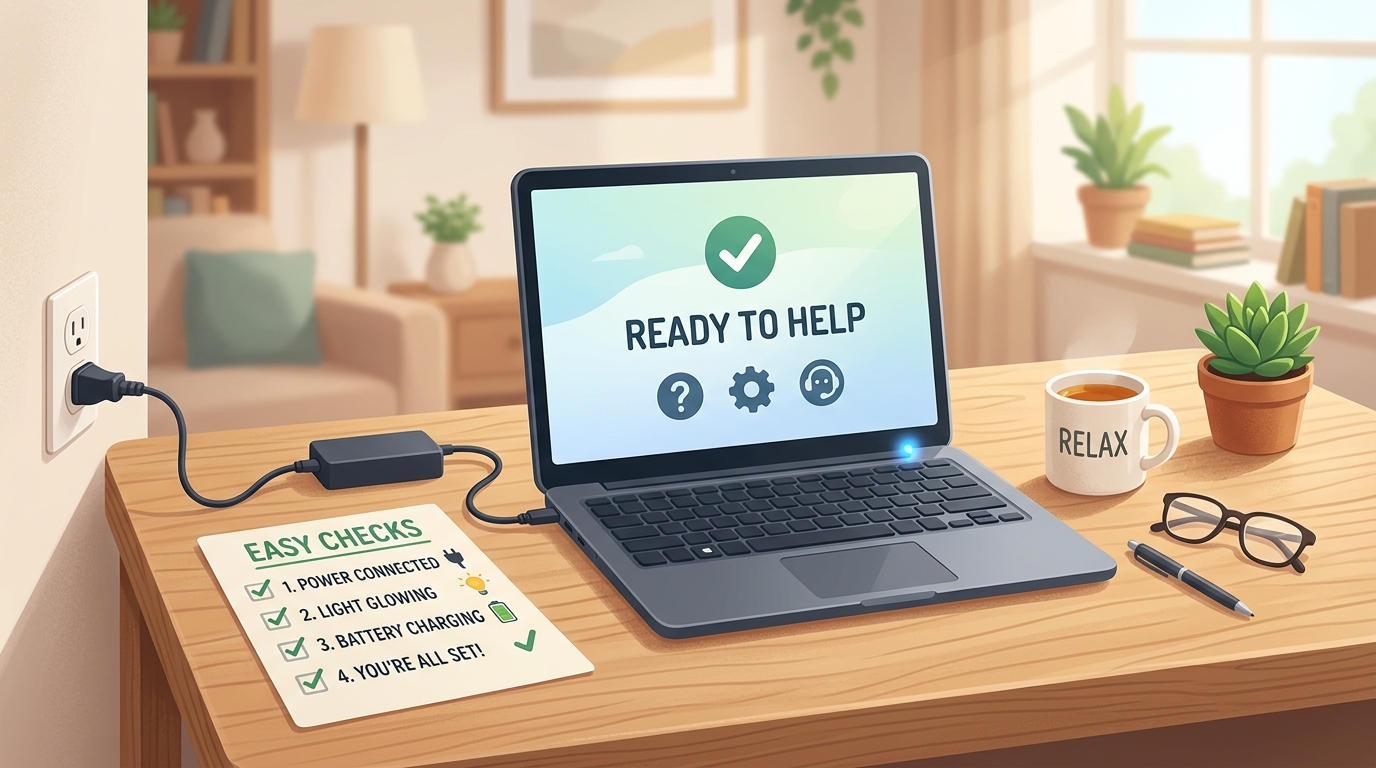
Laptops chargers have multiple connection points, and it is very common for one to work its way loose when moving the computer:
- Check the wall socket: Plug a small lamp or phone charger into the exact same wall outlet to ensure the socket is actually delivering power.
- Check the power “brick”: If your charger has a heavy rectangular box in the middle of the cable, make sure the cord plugging into that box is pushed in all the way.
- Check the laptop port: Ensure the charging tip is plugged firmly into your laptop. If it wiggles loosely, gently press it straight in.
Step 2: Look for the Tiny Indicator Light
Almost every laptop has a tiny LED light (often no bigger than a pinhead) located right next to the charging port or on the front edge of the keyboard.
- Amber / Orange light: Your laptop is receiving power and actively charging its battery. Leave it plugged in for 20 minutes before pressing power.
- Solid White / Green light: The battery is full.
- No light at all: The laptop is not receiving electricity from the charger, pointing to a loose cable or a worn-out power cord.
Step 3: Perform a 20-Second “Hard Reset”
Modern laptops sometimes enter a “deep sleep” state or accumulate a harmless static electric charge that prevents them from waking up. Performing a hard reset clears this harmless static:
- Unplug the power charger from the laptop.
- Press and hold down the physical Power Button for 20 full seconds (count slowly: 1-Mississippi, 2-Mississippi…). Do not let go early.
- Release the power button.
- Plug the power charger back into the laptop.
- Press the power button normally once.
Step 4: Check for Accidental Screen Darkness
Sometimes the laptop actually is on, but the display screen has been dimmed to total blackness. Look at the top row of your keyboard for keys with sun icons (usually F2, F3, or F11/F12). Press the Brightness Up key several times to see if the display illuminates.
Step 5: When to Call a Trusted Family Member or Shop
If you have tried all four steps above and the tiny charging light still refuses to turn on, ask a family member to test a spare compatible charger. Laptop chargers fail much more frequently than the laptops themselves, and a replacement cord is inexpensive and quick to order.