

There’s a peculiar moment when you’re trying to help a family member fix something on their iPhone. You describe the settings menu, they tap something else. You repeat yourself, they get frustrated.
The solution is screen sharing, but Apple made this deceptively confusing. You’re likely wondering how to screen share on iPhone for help FaceTime screen share, and what that “Messages ask to share screen” prompt actually does.
The short version is that these are two different features with different purposes. FaceTime screen sharing lets you broadcast your live screen during a call. The Messages prompt is a collaboration shortcut, and it often leads nowhere useful.
As of 2026, both require compatible hardware running iOS 15.1 or later, which covers most modern iPhones. Let’s untangle the confusion so you can actually get help when you need it.
Quick Answer
Start a FaceTime call first. Tap the “Share My Screen” button during the call. Confirm with “Start Sharing.” The Messages “Ask to Share Screen” prompt is different.
It’s for document collaboration, not live screen sharing. Use FaceTime for actual help.
The Confusion: What “Ask to Share Screen” in Messages Actually Does
When you’re in a text conversation and spot the “Ask to Share Screen” option, it’s easy to assume it works like a video call screen share. It doesn’t. That prompt belongs to Apple’s collaboration tools.
Apple calls it SharePlay-adjacent functionality, but the naming is genuinely misleading.
The prompt typically appears when you’re working on a shared note, a Pages document, or a Safari tab. Tapping it sends a request to the other person to open that specific item together. It doesn’t broadcast your home screen, your apps, or your settings.
If you’re trying to show someone a confusing pop-up or a specific app, this feature won’t help.
What usually happens is this: you tap “Ask to Share Screen,” and nothing obvious occurs. The other person gets a notification about viewing a shared item, but there’s no live feed of your display. In many cases, the prompt will try to launch a FaceTime call instead.
If that call starts, you’re still not sharing your screen. You’re just in a regular video call. To actually share, you’d need to locate the “Share My Screen” button within that call and activate it manually.
The Messages prompt is a shortcut that doesn’t complete the job.
When the Messages Prompt Is Actually Useful
There’s one scenario where “Ask to Share Screen” makes sense. If you and another person are actively editing the same document, note, or presentation, this prompt launches a collaborative session. Both of you can see and edit the item in real time.
For example, you’re planning a grocery list in a shared Notes folder. Tapping “Ask to Share Screen” invites the other person to join that note. You can both type and see changes instantly.
That’s genuinely handy, and it’s what the feature was designed for.
But remember the context. If someone asks for help with an iPhone setting or app, this isn’t the tool. They need to see your actual device screen, not a shared document.
Always default to FaceTime for that kind of assistance.
The Real Path: How to Screen Share on FaceTime (Step-by-Step)
This is the feature that actually solves your problem. FaceTime screen sharing broadcasts your entire display live to the person on the other end of the call. They see exactly what you see, including every tap and swipe.
Before you start, verify your devices meet Apple’s requirements. Both parties need an iPhone X or later, an iPad Pro 11-inch or later, an iPad Air 4th generation or later, or an iPad mini 6th generation or later. Additionally, both devices must run iOS 15.1 or iPadOS 15.1 or newer software.
Older hardware simply won’t show the button, so check before you waste time looking for it.
Here’s the complete workflow:
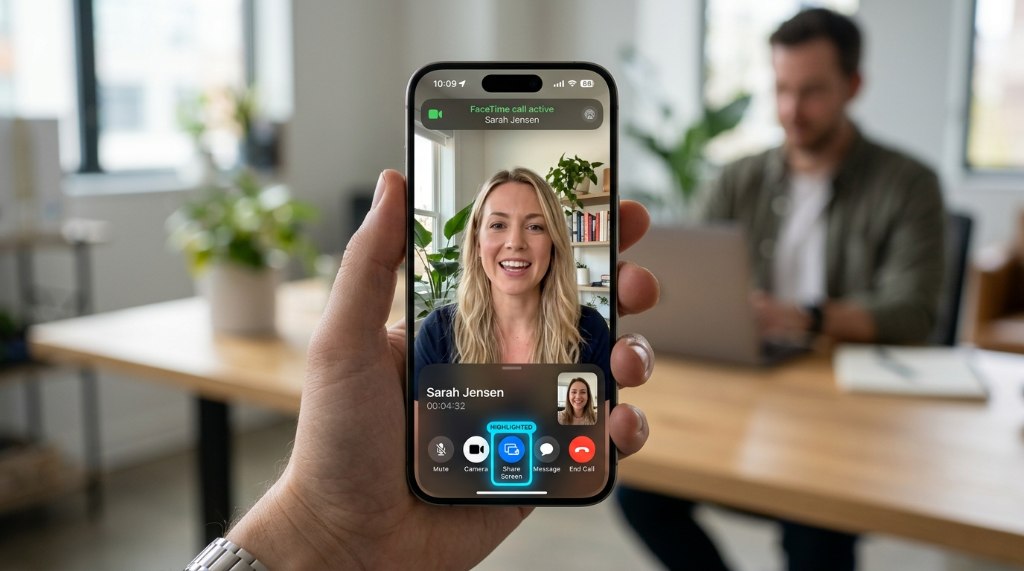
Step 1: Start an active FaceTime call. You cannot initiate screen sharing from a text message. Open FaceTime, call your contact, and wait for them to answer. Screen sharing only activates during a live call.
Step 2: Find the “Share My Screen” icon. Once the call connects, you’ll see a row of controls at the bottom of your screen. Look for the icon that resembles a person inside a rectangle or a monitor with an upward arrow. This is your screen share button.
Step 3: Tap the icon and confirm. A pop-up will appear asking if you want to start sharing. Tap “Start Sharing.” Your screen immediately becomes visible to the caller.
Step 4: Navigate normally. The other person sees everything. Switch between apps, open settings, show them the problem. They can guide you in real time, and your audio continues simultaneously so they can talk you through it.
Step 5: End the share. When you’re finished, tap the same icon again. Select “Stop Sharing” from the prompt. The call continues as normal, but your screen is no longer visible.
How to Swap Who Shares
Here’s a detail most people discover by accident. Both parties can share their screens, but only one at a time. If your helper needs to demonstrate something, they tap “Share My Screen” on their end.
This automatically stops your broadcast and switches to theirs.
This handoff is seamless and incredibly useful for troubleshooting. You show them the problem, they take over to demonstrate the fix, then you switch back to practice it yourself. It’s like passing the phone back and forth, digitally.
Quick Troubleshooting: Why Your Screen Share Isn’t Working
Screen sharing usually works without a hitch, but when it doesn’t, the problem is almost always one of a few things. Here’s a decision tree to guide you through common issues.
The “Share My Screen” button is missing entirely. This indicates a compatibility problem. Either your device is too old, or your iOS version is outdated. Go to Settings, then General, then Software Update.
Install any available updates. If your device is an iPhone X or later and still lacks the button, ensure you’re actually in an active call. The button only appears during live conversations.
The button is grayed out or unresponsive. This points to Screen Time restrictions. Open Settings, tap Screen Time, then Content & Privacy Restrictions. Verify that FaceTime is allowed under Allowed Apps.
If restrictions are enabled, disable them temporarily or adjust the permitted apps.
Screen sharing keeps dropping mid-call. This is a connectivity issue. Screen sharing transmits a significant amount of data, and weak Wi-Fi or poor cellular reception causes interruptions. Move closer to your router or switch networks.
A stable connection is essential for a smooth experience.
The recipient says they can’t see anything. Check whether they’ve minimized the call window. On their end, the screen share may appear in a separate small window. Ask them to tap the video area to expand it.
Sometimes a simple tap resolves everything.
Common Mistakes to Avoid
A few errors consistently trip people up. First, don’t try to start screen sharing from Messages. It won’t work as expected.
Second, don’t look for the button before the call connects. It only appears during active calls. Third, don’t ignore data usage.
If you’re on a limited cellular plan, screen sharing can consume significant data quickly. Use Wi-Fi whenever possible.
If the call connects but the screen share fails repeatedly, try ending the call and starting fresh. A new call resets the connection and often resolves glitches. Restarting both devices also clears temporary software errors that could interfere.
Privacy & Practical Considerations Before You Share
Broadcasting your screen exposes more than you might realize. When you share your screen during a FaceTime call, the other person sees everything. That includes notifications, message previews, photos, and any sensitive information visible on your display.
Incoming texts appear at the top of your screen with previews. Email alerts show subject lines and senders. If you receive a notification with private content while sharing, the recipient sees it.
This is a real privacy risk that many people overlook.
Before you start a screen share session, consider enabling Do Not Disturb or Focus mode. These features silence notifications and prevent them from appearing on your screen. This simple step protects your privacy.
Setting Up Focus Before You Share
To enable Do Not Disturb, swipe down from the top-right corner to open Control Center. Tap the crescent moon icon. This silences notifications and keeps your display clear.
Alternatively, go to Settings, select Focus, and configure a custom mode.
You can also use the “Share Focus Status” option to let the other person know you’ve activated it. Just remember that Focus mode doesn’t hide everything. Content already on your screen remains visible.
Close sensitive apps and documents before sharing.
One more critical point: only one person can share at a time. If you’re sharing and your helper taps “Share My Screen,” their broadcast takes over immediately. Your feed stops. This isn’t a glitch.
It’s the intended behavior.
For a deeper look at protecting yourself during remote help sessions, . They cover additional steps for keeping your data private while letting someone assist you remotely.
FaceTime vs. Third-Party Apps: Which Screen Share Should You Use?
FaceTime’s built-in screen sharing is the right choice for most iPhone-to-iPhone situations. It’s free, pre-installed, and requires no extra accounts. Both parties just need compatible Apple devices with updated software.
That simplicity makes it the default option for family tech support.
But there are limits. FaceTime screen sharing only works between Apple devices. If you’re helping someone on Android or Windows, you need a cross-platform solution.
That’s where third-party apps come in.
Zoom, Google Meet, and Microsoft Teams
All three major video conferencing apps support screen sharing on iPhone. They work across platforms, so you can help a friend on any device. Each app requires both parties to download the software and create accounts.
That’s an extra step, but it’s worth it when FaceTime won’t work.
| Option | Best For | Platform Support | Cost |
|---|---|---|---|
| FaceTime | Apple-to-Apple help | iOS, iPadOS, macOS | Free |
| Zoom | Cross-platform support | iOS, Android, Windows, Mac | Free tier |
| Google Meet | Gmail users | iOS, Android, Web | Free tier |
| Microsoft Teams | Work/school contexts | iOS, Android, Windows, Mac | Free tier |
How Third-Party Apps Compare
Zoom and Google Meet follow the same basic workflow as FaceTime. Start a call, tap the screen share icon, then confirm. The interface differs slightly, but the concept is identical.
Teams also works, though it’s more oriented toward workplace collaboration than casual family help.
One advantage these apps have over FaceTime is annotation tools. Hosts can draw on the shared screen in some cases. That’s a feature Apple has never added to FaceTime screen sharing.
For detailed technical explanations, annotations can be genuinely valuable.
That said, our research shows most people prefer FaceTime for family support. It’s already installed, and there’s no signup friction. The moment you ask a parent to download Zoom, they get overwhelmed.
Keep it simple whenever possible.
Quick recommendation: Use FaceTime if both parties have iPhones. Use Zoom or Google Meet if you need cross-platform help. Reserve Teams for work scenarios where it’s already deployed.
For privacy during third-party sessions, each app has its own settings. Zoom calls out screen sharing permissions when you start. Google Meet shows a clear preview before you share.
If you’re helping someone less tech-savvy, walk them through these prompts slowly.
One final note on third-party tools: they consume even more data than FaceTime. Video plus screen sharing plus audio adds up quickly. Verify your data plan can handle extended sessions.
Unlimited plans are fine. Limited plans may hit coverage caps mid-call.
Frequently Asked Questions
Can I share my screen from Messages without FaceTime?
No. The “Ask to Share Screen” prompt in Messages is for document collaboration, not live screen sharing. Tapping it may launch a FaceTime call, but you’ll still need to activate “Share My Screen” manually during that call.
There’s no way to broadcast your live screen directly from a text conversation.
Why doesn’t the “Ask to Share Screen” prompt do anything?
You’re likely tapping it outside a collaborative context. The prompt only works when you’re viewing a shared item like a note, Pages document, or Safari tab. If you’re in a regular text thread, the prompt may appear dead or simply launch a FaceTime call without any visible effect.
Does screen sharing show my notifications?
Yes. Everything on your display is visible, including incoming notifications and message previews. Enable Do Not Disturb or Focus mode before sharing to prevent sensitive alerts from appearing.
Close any apps with private content before you start the broadcast.
Can the other person control my screen?
No. FaceTime screen sharing is view-only. The recipient sees your screen but cannot tap, swipe, or make changes.
If you need remote control, you’d need a third-party tool designed for that purpose, but Apple doesn’t offer this within FaceTime.
How do I stop sharing during a call?
Tap the “Share My Screen” icon again and select “Stop Sharing.” The call continues as normal. You can also end the entire FaceTime call to stop the broadcast automatically. There’s no timeout feature, so manually stopping is the only way to end sharing while staying on the call.
Does screen sharing work on older iPhones?
Only if the device is an iPhone X or later. Older models lack the necessary hardware support for this feature. Both parties must also run iOS 15.1 or newer.
If either device fails these requirements, the “Share My Screen” button simply won’t appear during calls.