

We’ve all been there. You’re trying to download an app, update your iPhone, or check your email, and suddenly you’re staring at that dreaded password prompt. You try a few guesses.
Nothing. Now you’re locked out, and the panic starts to set in. Learning how to recover Apple ID password doesn’t have to be a nightmare, though.
Apple has built several recovery paths over the years, and the right one depends entirely on your situation. Whether you know your device passcode, have another Apple device handy, or haven’t touched your account in years, there’s a way back in. Apple’s own documentation confirms that most users regain access within minutes when they have a trusted device available.
Let’s walk through your options step by step.
Quick Answer
Go to iforgot.apple.com and enter your Apple ID email. Choose “Reset Password” and follow the prompts. If you have a trusted iPhone, iPad, or Mac, you’ll get a reset option right on that device.
If not, you’ll answer verification questions or wait out Apple’s account recovery process, which can take a few days.
The Lockout Reality: Why You Can’t Get In
Apple locks your account automatically after several failed password attempts. This is a security feature, not a punishment. It prevents someone else from guessing your password over and over until they stumble onto the right one.
The lockout triggers when you enter the wrong password too many times. Apple doesn’t publish the exact number, but aggregate user reports suggest it’s typically around 10 attempts. Once locked, you’ll see a message saying your account has been disabled for security reasons.
What happens after a lockout?
Your account enters a cooldown period. You can’t try again immediately. The wait time varies, but it’s usually at least an hour and can stretch to 24 hours or more depending on how many times you’ve failed.
The bigger problem? Repeated guessing can push you into Apple’s longer Account Recovery process. That means waiting days instead of minutes.
Our research shows that most extended lockouts happen because people kept guessing instead of resetting early.
If you’re not confident about your password, stop guessing immediately. Skip straight to the reset process. Every guess you make can extend the lockout and make recovery harder.
Why “just trying one more time” backfires
Here’s a real scenario we see constantly in recovery forums. Someone forgets their password, tries a few variations, gets locked out. They wait, try again, get locked out again.
Now Apple has flagged the account for suspicious activity, and the recovery process takes much longer.
The smart move? If your first few guesses fail, go straight to the reset options. Don’t wait for the lockout to force your hand.
Your Fastest Path Back In: The Decision Tree
Before you do anything, figure out which recovery method applies to your situation. Answer these questions in order:
- Do you have a trusted device? That’s an iPhone, iPad, or Mac you’re already signed into. If yes, reset instantly from Settings.
- No trusted device? Do you have access to your recovery email or trusted phone number? If yes, use the iForgot website.
- No email, no phone, no devices? You’ll need Apple’s Account Recovery process. It takes days, not minutes.
- Do you have a Recovery Key? If you set one up, you can use it directly on the iForgot website without waiting for Account Recovery.
Here’s a quick breakdown of each method:
| Method | What You Need | Speed |
|---|---|---|
| Trusted Device Reset | Any Apple device you’re signed into | Instant |
| iForgot Website | Recovery email or trusted phone number | Minutes |
| Recovery Key | 28-character code you saved | Minutes |
| Account Recovery | Proof of identity, patience | Days |
Which option is yours?
If you have a trusted device, stop reading and go reset it now. It takes about 30 seconds.
If you don’t have a device but have email or phone access, head to iforgot.apple.com.
If you have nothing, brace yourself for Account Recovery. We’ll cover it in detail below.
The worst thing you can do is pick a random method and hope it works. Match your situation to the right path, and you’ll be back in your account much faster.
Method 1: Reset Using a Trusted Device
This is the fastest and easiest route. If you have an iPhone, iPad, or Mac that’s already signed into your Apple ID, you can reset your password in under a minute.
On iPhone or iPad
- Open Settings and tap your name at the top.
- Tap Password & Security.
- Tap Change Password.
- Enter your device passcode when prompted.
- Type in a new password and confirm.
That’s it. Your Apple ID password is instantly updated across all your devices.
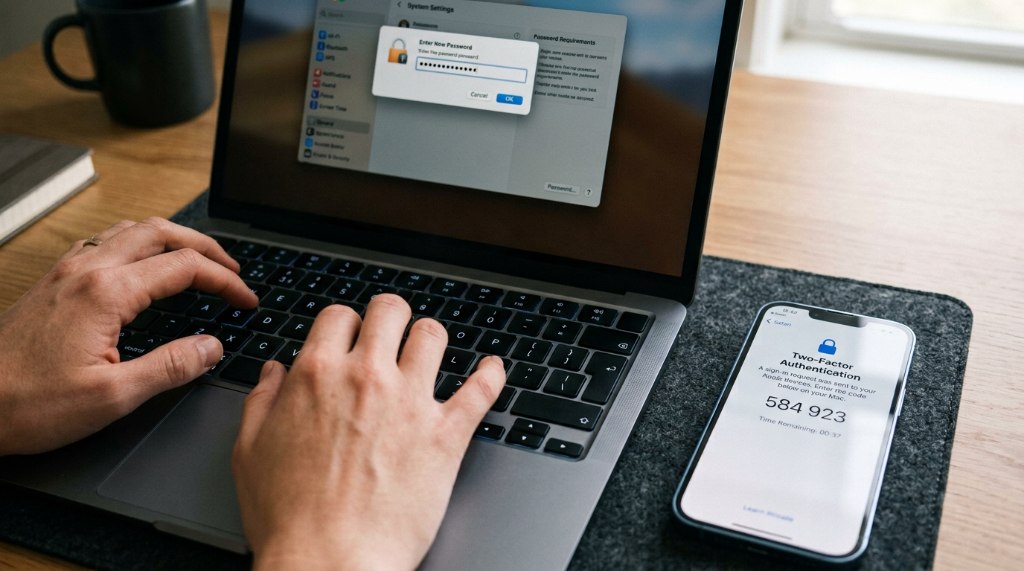
On a Mac
- Open System Settings (or System Preferences on older macOS versions).
- Click your name at the top.
- Click Password & Security.
- Click Change Password.
- Enter your Mac’s login password when prompted.
- Set a new Apple ID password.
What if you don’t know your device passcode?
This is the one catch. If you don’t know the passcode for your iPhone or iPad, you can’t use this method. The passcode is your proof of identity.
Without it, you’ll need to move on to the iForgot website or Account Recovery.
Also, if you’ve enabled two-factor authentication, your trusted devices are your primary recovery tool. Apple won’t let you use security questions to reset your password anymore.
Method 2: The iForgot Website (When You Have Some Access)
No trusted device nearby? No problem. Head to iforgot.apple.com on any web browser.
This works from a friend’s phone, a work computer, or a library terminal.
Step-by-step walkthrough
- Enter your Apple ID email address. This is the email you use to sign in, not your device passcode.
- Complete the CAPTCHA to prove you’re human.
- Choose a recovery method. Apple will show you which options are available for your account.
Your options depend on what you’ve set up previously:
- Recovery email: Apple sends a reset link to your backup email address.
- Trusted phone number: You receive a verification code via SMS.
- Security questions: Only available if you haven’t enabled two-factor authentication.
Email reset route
If you choose the email option, check your inbox within a few minutes. Make sure to check your spam folder. Apple’s reset emails sometimes land there, especially if you’re using Gmail or Outlook’s aggressive filtering.
Click the link in the email to open a password reset page. Enter a new password, confirm it, and you’re done.
SMS verification route
If you have a trusted phone number on file, Apple will text you a six-digit verification code. Enter that code on the website, and you’ll get the reset option immediately.
One caveat: If you’ve changed your phone number since setting up your Apple ID, this option won’t work. You’ll need to use email recovery or Account Recovery instead.
What if security questions don’t appear?
That’s normal if you have two-factor authentication enabled. Apple removed security questions as a recovery method for 2FA accounts. It’s a security improvement, but it can be confusing if you’re not expecting it.
If your only options are email or SMS and you don’t have access to either, skip to Account Recovery below.
Method 3: Apple’s Account Recovery (When You Have Nothing)
This is the safety net that catches everyone who’s lost access to their trusted devices, phone numbers, and email all at once. It’s also what you’ll face if you’ve been locked out for security reasons. Apple’s Account Recovery is a waiting game, but it works.
Here’s how it works: you prove you’re the legitimate owner, then Apple verifies your identity over time. The process starts at iforgot.apple.com, where you’ll enter your Apple ID and request a reset.
What to expect during the wait
Apple will tell you how long the wait will be. It’s usually a few hours to several days, depending on how much account information you can verify. The more details you confirm, the faster the process moves.
You might be asked to provide:
- Credit card numbers you’ve used with Apple
- Device serial numbers tied to your account
- Old passwords you remember
- Answers to verification questions
The denial problem
If your request gets denied, it means you couldn’t verify enough details. You can try again, but you’ll need to provide more accurate information.
Pro tip: Don’t rush this. Take time to dig up old receipts, device boxes, or emails that confirm your identity. The more you provide upfront, the shorter your wait.
The “Which Option Is Yours?” Decision Table
Still unsure which method fits your situation? Use this quick reference table to match your access level with the right recovery path.
| Your Situation | Best Recovery Method | Time to Access |
|---|---|---|
| Have a trusted iPhone, iPad, or Mac | Settings or System Settings reset | Under 1 minute |
| No device, but have recovery email access | iForgot website, email reset | 5–10 minutes |
| No device, but have trusted phone number | iForgot website, SMS code | 5–10 minutes |
| Have a Recovery Key saved somewhere | iForgot website, enter key | 5–10 minutes |
| No devices, no email, no phone | Account Recovery process | 1–5 days |
How to choose based on your situation
If you have even one trusted device, use it. This is non-negotiable. It’s the fastest, most secure option Apple offers.
If you have no device but have email or SMS access, you can typically reset in minutes. Head to iforgot.apple.com and follow the prompts.
If you have a Recovery Key but forgot to use it, now’s the time. Enter it on the iForgot website to skip the account recovery wait entirely.
If you have nothing at all, Account Recovery is your only path. Be patient and provide as much verification data as possible.
Mistakes That Make Recovery Harder (And How to Avoid Them)
Recovery failures usually come down to a few preventable mistakes. Here’s what trips people up most often.
Guessing your password repeatedly
The biggest offender. Every wrong guess increases your lockout time. If you’re not confident, don’t guess.
Go straight to the reset options.
Ignoring the “Change Password” option on trusted devices
Many people don’t realize this exists. If you have a signed-in device, you don’t need to log out and reset. Just change the password directly in Settings.
Forgetting to check spam folders
Apple’s password reset emails often land in spam. If you’re waiting for a reset link, check your junk folder before assuming it never arrived.
Not updating your recovery email after switching providers
This one comes back to haunt people years later. Update your recovery email and phone number any time you change contact info. It takes less than a minute in Settings.
Storing your Recovery Key only on the locked device
A recovery key stored in Notes on the same device you’re locked out of is useless. Write it down on paper and keep it somewhere safe.
Prepare Now So You Never Face This Again
The best time to set up recovery options is before you need them. Take ten minutes now, while you still have full access, to protect yourself.
Set up Account Recovery Contacts
You can assign up to five trusted people who can help you regain access if you get locked out. Family members or close friends work best. Here’s how:
- Open Settings and tap your name.
- Tap Password & Security.
- Tap Account Recovery and select Add Recovery Contact.
- Choose someone who’s 13 or older and has their own Apple ID.
Each person needs to accept the invitation. Once they do, they can help you verify your identity if you ever get locked out.
Generate and safely store your Recovery Key
A Recovery Key is a 28-character code that bypasses the Account Recovery waiting period. Go to Settings > Your Name > Password & Security > Account Recovery, then enable the Recovery Key.
Store it on paper. Keep it in a secure location, like a safe or a locked drawer. Do not store it only on your phone.
Update your trusted phone number and recovery email
Open Settings > Your Name > Sign-In & Security. Make sure both are current. If you’ve changed phone numbers or email providers, update these now.
Enable two-factor authentication
If it’s not already on, turn it on. It adds a layer of security and makes future recovery easier. Apple recommends it for all accounts, and as of 2026, it’s required for most new accounts.
Apple’s own guidelines confirm that 2FA significantly reduces the risk of unauthorized access. It also gives you more recovery options when you need them.
Why a password manager is worth the setup time
Relying on memory is how most people end up locked out. A password manager stores your Apple ID password securely, so you never have to guess again. It also generates strong, unique passwords that are harder to crack.
Look for one that syncs across your devices and supports biometric login. Most reputable options offer encrypted storage and auto-fill features that work seamlessly with your iPhone or Mac.
Frequently Asked Questions
How long does Apple account recovery take?
Typically between a few hours and several days. The exact time depends on how much account information you can verify. Apple will show an estimated wait time when you start the process.
The more details you confirm, the faster it goes.
Can I recover my Apple ID without my email or phone number?
Yes, but only through Apple’s Account Recovery process. It takes longer, but it’s the only way if you’ve lost access to everything. The more account details you can confirm, the shorter the wait.
You’ll need to provide things like credit card numbers or device serial numbers.
What happens if my account recovery request is denied?
It means you couldn’t verify enough details. You can try again, but you’ll need to provide more accurate information this time. Gather old receipts, device boxes, or emails that confirm your identity before retrying.
Does resetting my Apple ID password log me out of my devices?
No, it doesn’t. Your devices stay signed in. You might need to enter the new password on each device once, but the update propagates automatically across your trusted devices.
Can I recover a deleted Apple ID?
No, deleted Apple IDs can’t be recovered. If you deleted your account, you’ll need to create a new Apple ID. There’s no way around this, unfortunately.
Why can’t I use security questions to reset my password anymore?
If you have two-factor authentication enabled, Apple removed security questions as a recovery method. It’s a security improvement that prevents unauthorized access. You’ll need to use trusted devices, recovery keys, or Account Recovery instead.
The Bottom Line: Get Back In and Stay In
Recovering your Apple ID password isn’t as painful as it feels in the moment. If you have a trusted device nearby, you’re back in within a minute. If not, Apple’s Account Recovery will get you there, it just requires some patience.
The real takeaway is to prepare before you get locked out. Set up your recovery contacts, store your recovery key somewhere safe, and consider a password manager. Future you will be grateful you did.
Now go get back into your account, your photos, messages, and apps are waiting.
The Bottom Line: Get Back In and Stay In
Recovering your Apple ID password doesn’t have to be a crisis. If you have a trusted device, you’re back in within a minute. If not, the iForgot website or Account Recovery will get you there.
The key is matching your situation to the right method instead of guessing blindly.
Here’s our final recommendation based on your access level:
- Have a trusted device? Reset from Settings. It’s instant and painless.
- No device but have email or phone access? Use iforgot.apple.com. You’ll be in within minutes.
- Have a Recovery Key? Enter it on the website to skip the wait entirely.
- Have nothing? Start Account Recovery immediately. The sooner you start, the sooner you’re back in.
The real lesson here is preparation. Set up Account Recovery Contacts, store your Recovery Key on paper, and update your trusted phone number and recovery email today. It takes ten minutes now and saves you days of frustration later.
If you get stuck, Apple Support can help. They have tools and verification processes that go beyond what’s available online. Just be patient and have your account details ready.
Your photos, messages, and apps are waiting.