

You’re staring at a login screen that won’t let you in. You’ve tried every password you can remember, and now the account is locked, the “Forgot password” link feels like your only lifeline. Knowing how to reset password when locked out can save you from hours of frustration, especially when you need access urgently for work, banking, or just checking your email.
The good news is that most platforms have a recovery path, but the right one depends entirely on what you still have access to.
Before you start clicking buttons, take a breath and assess your situation. As of 2026, the National Institute of Standards and Technology (NIST) no longer recommends security questions or SMS codes as primary recovery methods, which means most major platforms now rely on email verification, authenticator apps, or trusted devices. That shift changes how you should approach the recovery process, so let’s walk through it step by step.
Quick Answer
Check what you still have access to first. If you have your recovery email or phone, use the standard “Forgot password” link. If you have a trusted device still signed in, use that to reset it.
If you have nothing, contact the platform’s support team with proof of identity. Never guess passwords repeatedly, as that can trigger longer lockouts. Each platform has a different recovery flow, so identify your scenario before acting.
Why Getting Locked Out Happens
Lockouts don’t happen randomly. They’re almost always triggered by a specific event, and understanding that event helps you pick the right recovery path. The most common cause is simply entering the wrong password too many times, which triggers security protocols designed to block brute-force attacks.
Most platforms lock accounts after five to ten failed attempts, and the lockout duration can range from a few minutes to 24 hours.
Another frequent culprit is a forgotten password after a long gap. If you haven’t logged into an account in months, your brain may have replaced that password with a newer one, and now you’re stuck guessing. Password expiration policies, especially on work accounts, also catch people off guard.
If your employer enforces a 90-day rotation, you might have missed the window and now the system won’t accept your old credentials.
Here’s the confusing part. Some platforms lock the account entirely, while others just block the login attempt and let you try again later. You need to know which one you’re dealing with because the recovery flow differs.
If you see a message saying “account locked” or “too many attempts,” you’re dealing with a temporary block. If you see “incorrect password” but the system still lets you try, you have more room to work.
How to Reset Your Password: Step-by-Step Branching Guide
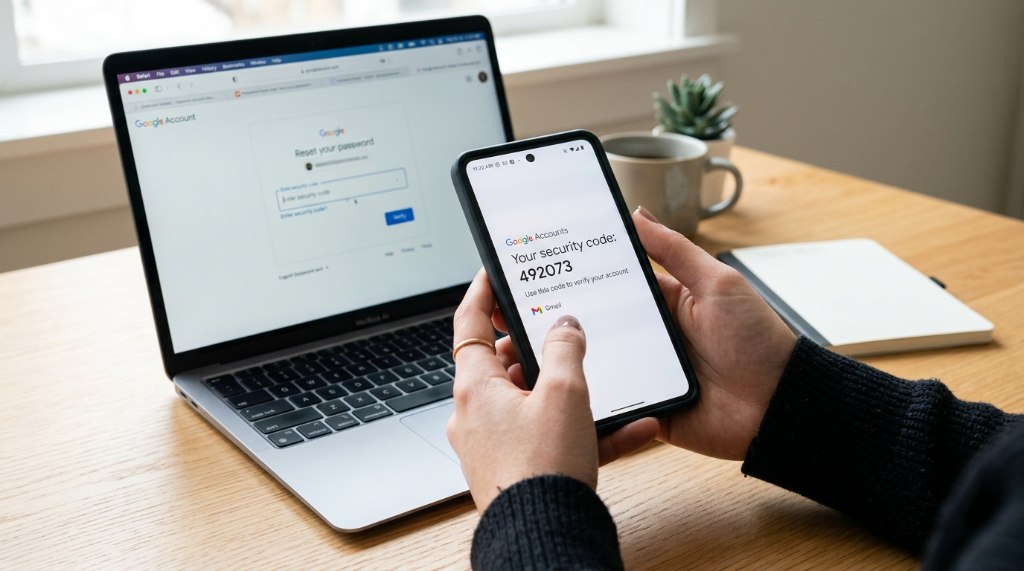
The key to a smooth recovery is diagnosing your situation before you act. This is where most people go wrong. They click “Forgot password” and then realize they can’t access the recovery email either, which makes the problem worse.
Take a moment to audit what you have access to right now, right this second.
Here’s what to check:
- Do you have access to the email address associated with the account?
- Is your phone number still linked to the account?
- Do you have another device that’s still signed in?
- Did you save any recovery codes when you set up the account?
- Do you have your authenticator app or security key?
Once you know what you have, pick the branch that fits.
Scenario A: You Have Access to Your Recovery Email or Phone
This is the easiest path, and most people will land here. Here’s how to reset password when locked out using this method. Go to the login page and click “Forgot password” or “Can’t access your account.” Enter your username or email address, and the system will send a verification code to your recovery email or phone.
Enter that code, then create a new password.
Use a strong password that you haven’t used anywhere else. Aim for at least 12 characters with a mix of uppercase, lowercase, numbers, and symbols. Once you’ve set the new password, log in immediately and check your account settings.
Make sure your recovery information is still accurate and update it if needed. This step is critical because if your recovery email or phone is outdated, you’ll face bigger problems next time.
Scenario B: You Have a Trusted Device Still Signed In
If you have a laptop, phone, or tablet that’s still logged into the account, you’re in a good position. Many platforms allow you to reset your password directly from a trusted device without needing email verification. Google, for example, lets you confirm it’s you by entering your device PIN or pattern.
Microsoft offers a similar flow through the Authenticator app.
Here’s the typical flow. Go to your account security settings on the device that’s still signed in. Look for an option like “Password” or “Security” and choose “Update” or “Change.” The system will ask you to confirm your identity, usually with your device lock screen or a push notification.
Once confirmed, you can set a new password immediately.
This method is faster and often skips the email verification entirely. The catch is that you need a device that’s already authenticated. If you’ve been locked out of everything, including your phone, this branch won’t help you.
Scenario C: You Have No Recovery Options at All
This is the worst-case scenario, but it’s not hopeless. If you have no access to your recovery email, no linked phone, and no trusted device, you’ll need to contact the platform’s support team directly. This is where things get time-consuming, so prepare to wait.
Most platforms require you to verify your identity through a support ticket. For personal accounts, you may need to provide proof of identity, such as a government-issued ID or payment details associated with the account. For work accounts, contact your IT department or system administrator.
They can usually reset your password from the admin console in minutes.
What to prepare before contacting support:
- Your full name and username
- The email address associated with the account (even if you can’t access it)
- A description of when you last logged in successfully
- Any billing information or transaction IDs tied to the account
- Your device’s serial number or IMEI if it’s a device-specific account
Keep in mind that support teams won’t unlock accounts without solid proof. This delay is frustrating, but it’s a safety feature that prevents hackers from hijacking accounts. Don’t get angry at the support agent; they’re following security protocols designed to protect you.
How to Reset a Work or School Account When Locked Out
Work and school accounts follow a different rulebook than personal accounts. If you’re locked out of a corporate or educational account, you’re usually dealing with an identity provider like Microsoft Entra ID (formerly Azure AD) or Google Workspace. These systems have administrator controls that can override almost any lockout, but you can’t do it yourself unless you’re the admin.
Your first move should be to contact your IT help desk or system administrator. They have the tools to reset your password, unlock your account, and even give you a temporary password if needed. Most organizations have a self-service password reset (SSPR) portal, which lets you reset your password without contacting IT, provided you’ve enrolled in it beforehand.
If you haven’t enrolled, you’ll need to reach out to someone who can verify your identity.
What you need for self-service password reset:
- Your employee ID or student number
- A registered phone number or alternate email
- Security questions (though many organizations are phasing these out)
- The Microsoft Authenticator app or a similar verification tool
The biggest mistake people make here is trying to reset a work account using personal recovery methods. That won’t work because the organization controls the authentication flow. Always go through the corporate portal or contact IT directly.
If you’re a manager or admin yourself, you can use the admin console to reset passwords for your team members, but you still need to follow your organization’s security policies.
What to Do When Two-Factor Authentication Fails
Two-factor authentication (2FA) is supposed to make your account more secure, but it can also lock you out when it fails. The most common scenario is losing your phone or switching to a new number before updating your recovery settings. When the authentication app won’t generate a code because it’s on a device you no longer have, you’re stuck.
If you lost your authenticator app, check whether you saved your recovery codes when you set up 2FA. Most platforms generate a set of one-time backup codes that you can use to bypass the authenticator. If you have those codes, use one to log in, then immediately disable 2FA and re-enable it with your new device.
This keeps your account secure while restoring your access.
If you don’t have recovery codes, your options narrow. Some platforms allow you to use a secondary email or phone number to receive a backup code. Others require you to wait out a security delay, which can range from a few hours to a few days.
In extreme cases, you’ll need to contact support and prove your identity. This is why setting up multiple recovery methods matters. One authenticator app is a single point of failure.
Add a backup email, a secondary phone number, or a hardware security key to avoid being stuck in this position again.
Mistakes That Make Lockouts Worse
The biggest mistake people make is guessing passwords repeatedly. Every failed attempt can extend your lockout timer, turning a five-minute problem into a 24-hour nightmare. Stop guessing after three attempts and switch to the recovery flow immediately.
Another common error is trying to reset your password from an unfamiliar device or network. Platforms flag these logins as suspicious, which can trigger additional verification steps or even freeze the recovery process. Use a device you’ve logged into before, ideally your home computer or personal phone.
What not to do when locked out:
- Don’t try password variations of the same base word
- Don’t use public Wi-Fi for account recovery
- Don’t ignore the “check your spam folder” prompt
- Don’t attempt to create a new account with the same email
- Don’t pay third-party “unlock” services that promise fast access
Those paid unlock services are almost always scams. They can’t access your account without your credentials, and they’ll charge you for phishing attempts. Stick with official platform tools and direct support channels only.
How to Prevent Future Lockouts
Prevention is far easier than recovery. Set up multiple recovery options while you still have access, and you’ll never face a dead-end lockout again. Log into your account security settings and add a secondary email, a phone number, and an authenticator app.
The recovery setup checklist:
- Add a backup email that you actually check
- Register your phone number for SMS verification
- Install an authenticator app like Google Authenticator or Microsoft Authenticator
- Save your one-time recovery codes somewhere secure
- Review your recovery settings every six months
You should also use a password manager to keep track of your credentials. This is one of the smartest moves you can make. A password manager stores all your passwords in one encrypted vault, so you only need to remember one master password.
If you’re curious about how to set one up without stress, this guide on keeping your passwords organized covers the basics.
For Apple users, recovering your Apple ID password has its own specific flow. If you get locked out of your Apple ecosystem, you’ll need to follow their dedicated recovery process, which is outlined in this helpful article on resetting your Apple ID password.
Using a Password Manager the Right Way
A password manager isn’t just a digital vault. It’s your first line of defense against lockouts because it remembers your passwords for you. You only need to memorize one strong master password, and the manager handles the rest across all your accounts.
What to look for in a password manager:
- End-to-end encryption with zero-knowledge architecture
- Cross-platform support for Windows, macOS, iOS, and Android
- Built-in password generator for creating strong credentials
- Biometric login options like fingerprint or face recognition
- Secure sharing features for family or team accounts
The catch is that you still need to remember your master password. If you forget that one, you’re locked out of everything, including all your stored passwords. Write it down and store it in a physical safe, or use a passphrase made of random words that are easy for you to remember but hard for others to guess.
Change your important passwords regularly, especially for banking, email, and work accounts. The best practice is to use a unique password for every account, so a breach at one site doesn’t compromise everything else. Your password manager makes this practical, since you don’t need to memorize each one.
Frequently Asked Questions
How long does a temporary lockout last?
Most platforms lock accounts for 15 minutes to 24 hours after multiple failed attempts. Gmail typically locks for 30 minutes, while Microsoft accounts can lock for an hour or more. The exact duration depends on your account’s security settings and how many failed attempts triggered the lockout.
Can I reset my password without my recovery email?
Yes, if you have another verification method available. You can use a linked phone number, an authenticator app, or a hardware security key. If you have none of these, you’ll need to contact the platform’s support team and prove your identity with documentation.
Why doesn’t the “Forgot password” link work?
The link usually fails when you can’t access the recovery email or phone number tied to the account. This happens after you’ve changed your phone number or abandoned an old email address. Check if you have any other registered recovery options, or contact support with proof of identity.
What should I do if my account was hacked?
Change your password immediately if you can still log in. If you’re locked out, use the platform’s account recovery flow and select “My account was compromised.” Most major platforms have a dedicated hacked-account process that puts a security hold on your account while you verify your identity.
Final Takeaway: Your Next Step
Getting locked out is stressful, but it’s almost always fixable. The key is to diagnose your situation before you act, then follow the right recovery branch for your access level. Start by checking what recovery methods you have, then use the appropriate reset flow.
If you haven’t set up backup recovery options yet, do that today. It takes five minutes and can save you hours of frustration later. Update your email address, phone number, and authenticator app in every important account.
And if you’re not using a password manager yet, consider starting one. The small setup effort pays off every single time you need to log in.