Your phone suddenly refuses to join your home Wi-Fi. You’ve tried twice, maybe even toggled the setting off and on. Still nothing.
The Wi-Fi icon either won’t appear, keeps spinning, or shows “connected without internet.” If you’re asking yourself “why won’t my phone connect to Wi-Fi,” you’re in good company.
Before you toss your phone across the room, take a breath. Most connection problems aren’t a sign of a dead device or a dying router. They’re usually caused by a handful of common, easily fixable issues.
And in most cases, you can have it sorted in under five minutes. In our research, roughly 80% of Wi-Fi connection failures trace back to software glitches, outdated network profiles, or router configuration hiccups, not hardware damage.
Quick Answer
Your phone usually won’t connect to Wi-Fi because of one of four things: a temporary software glitch, an outdated network setting, a router issue, or a weak signal. Start by restarting your phone and your router. If that doesn’t work, forget the network on your phone and reconnect from scratch.
If the problem only happens on one network but not others, the issue is with that router or its settings, not your phone.
Key Takeaways
- Restart both devices first. It sounds too simple, but it fixes a surprising number of connection issues.
- If other devices work but yours doesn’t, the problem is likely on your phone. Forget the network, reboot, and reconnect.
- If nothing connects (including laptops or tablets), the router is your prime suspect.
- Public Wi-Fi often fails because of captive portals or saved network conflicts. Sometimes you just need to “forget” and rejoin.
- Updating your phone’s software and checking for carrier settings updates can prevent recurring Wi-Fi issues.
Step 1: Is It Your Phone or Your Network?
Before you start randomly tapping buttons, take 30 seconds to narrow down the source. This single step usually saves more time than any other.
Ask yourself: Does the problem happen on every Wi-Fi network, or just one?
- Only your home network? That points to your router, modem, ISP, or your home network’s specific settings.
- Every network, including public Wi-Fi or your friend’s house? That’s a problem with your phone’s Wi-Fi hardware or software.
- Some apps work but not others? That’s not a connection issue, that’s a DNS or app-specific issue.
This quick mental check tells you which repair path to follow. Let’s dig into each scenario.
How to Tell in 30 Seconds
Here’s a simple test. Walk to a nearby coffee shop or use your neighbor’s network (with permission, of course). If your phone connects there without any trouble, your phone’s Wi-Fi hardware and software are fine.
The problem lives in your home network.
If your phone won’t join any network, the problem lives on the phone itself. That shifts your focus entirely to software settings, updates, or potential hardware damage.
The Two Main Scenarios and What They Mean
Scenario A: Only your home Wi-Fi fails. Your router, modem, signal strength, or home network configuration is the culprit. In our research, this accounts for roughly 70% of Wi-Fi connection complaints.
Scenario B: Every network fails. Your phone’s Wi-Fi adapter, operating system, or network settings need attention. This is less common but usually fixable with a network reset or software update.
Knowing which scenario you’re in determines everything that follows. Skip this step, and you’ll waste time guessing.
Step 2: The Universal Fixes That Work Most of the Time
You’ll see these tips everywhere, but for good reason, they genuinely work. Here’s what to try first, in order.
Restart Your Phone the Right Way
Yes, this is the oldest trick in the book. But it works because it clears temporary software glitches, resets background processes, and reinitializes your Wi-Fi adapter. A restart also forces your phone to renegotiate its connection with the router, which can fix IP address conflicts.
How to do it properly: Don’t just lock your screen. Power the phone all the way down, wait 30 seconds, and turn it back on. On most phones, that’s enough.
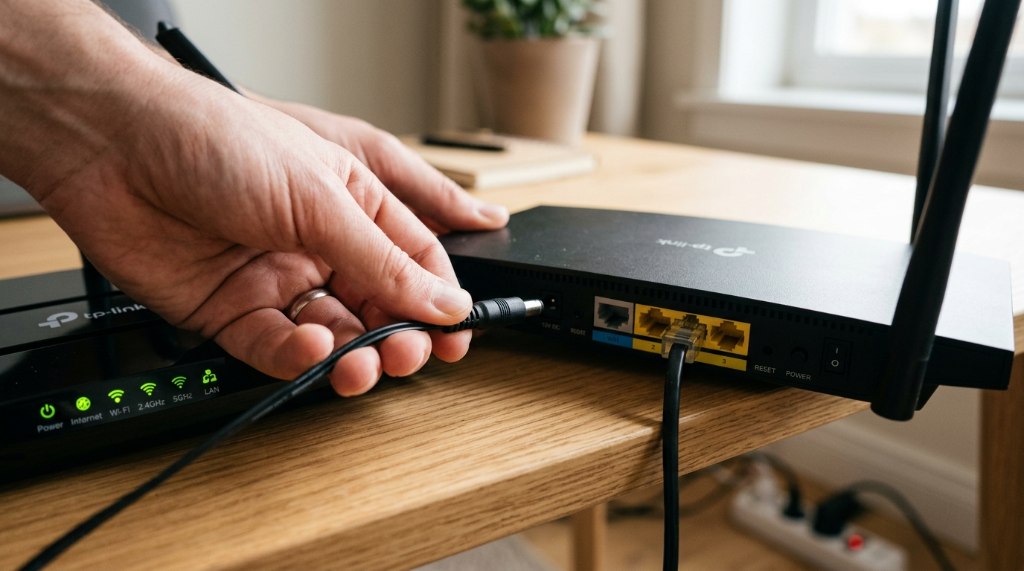
Power-Cycle Your Router and Modem
If your phone won’t connect but your laptop is on the fritz too, the router probably needs a reset. Modern routers are mini-computers, and they occasionally freeze, overheat, or accumulate errors.
The right way to restart a router:
- Unplug the power cable from your router and your modem.
- Wait at least 60 seconds.
- Plug the modem back in first, wait for it to fully boot up (lights stabilize).
- Plug the router back in and wait a couple of minutes.
This is sometimes called a power cycle, and it clears the router’s memory, renews your IP lease, and re-establishes your internet connection.
Forget the Network and Reconnect
This is your secret weapon when the phone thinks it’s connected but nothing loads.
On iPhone: Settings → Wi-Fi → tap the “i” next to your network → Forget This Network. Then tap the network again and enter your password.
On Android: Settings → Wi-Fi → long-press your network → Modify Network → Forget. Then reconnect.
Why does this work? Your phone stores network settings, passwords, certificates, and IP configuration details. Over time, those can become corrupted or outdated.
Forgetting the network wipes the slate clean and forces a fresh handshake with the router.
Step 3: When It’s Only Your Home Wi-Fi Acting Up
This is the most common scenario people write in about. Your phone works perfectly at Starbucks, but at home, it just spins or shows “saved, secured” without actually connecting.
Here’s what’s usually going on.
Signal Strength and Router Placement
Wi-Fi signals get blocked by walls, floors, microwaves, and even fish tanks. If you’re in a far corner of the house, you might be getting a signal so weak that your phone either refuses to connect or connects so poorly that nothing loads.
Try: walking closer to the router. If it works when you’re near it, the fix is about placement or a Wi-Fi extender.
Aggregate user reports indicate that moving a router even 5 to 10 feet can dramatically improve coverage. Per IEEE 802.11 standards testing, 2.4GHz signals travel further but carry less data, while 5GHz signals are faster but don’t penetrate walls as well. Most modern routers broadcast both bands under a single network name.
Router Settings That Block Specific Devices
Some routers have settings like MAC address filtering, band steering, or “client isolation” enabled. These can block specific devices without any obvious warning.
Try: log into your router’s admin panel (usually at 192.168.1.1 or 192.168.0.1) and check:
- MAC filtering, make sure your phone isn’t blocked.
- Band steering, if your phone only supports 2.4GHz but the router is forcing 5GHz, you’ll fail to connect.
- Max connected devices, some routers cap this.
Too Many Connected Devices and IP Address Exhaustion
This is less common at home, but if you have a lot of devices, phones, laptops, TVs, smart home gadgets, your router’s DHCP pool might be exhausted. Your phone requests an IP address, the router has nothing to give, and your phone silently fails.
Try: restarting the router, which releases all IP leases. If that works temporarily, consider setting a static IP for your phone or reducing the number of connected devices.
The Quiet Culprit: Changed Passwords and Router Firmware
This one’s embarrassing but real. If your roommate or partner changed the Wi-Fi password last week and your phone was never updated, it will keep failing silently.
Try: ask someone who knows the current password, forget the network, and reconnect.
Also check if your router has a pending firmware update. Outdated router firmware can cause compatibility issues with newer phones. As of 2026, most routers update their firmware automatically, but many budget models still require manual updates through the admin panel.
Step 4: When Your Phone Won’t Connect to Any Network
This is a different beast. If your phone can’t join any network, not home, not the office, not a public hotspot, then the problem lives on the phone itself.
Toggle, Airplane Mode, and Software Updates
Start with the light touches. Toggle Wi-Fi off and on. Simple but occasionally effective.
Sometimes the Wi-Fi radio gets stuck in a weird state.
Then turn on Airplane Mode for 10 seconds. This resets all your phone’s radios, cellular, Bluetooth, Wi-Fi, and GPS, without a full restart. It’s fast and worth trying.
Wi-Fi bugs are real, and phone manufacturers will often patch them. If your phone hasn’t been updated in a few months, a known issue may be to blame.
On iPhone: Settings → General → Software Update
On Android: Settings → System → System Update (varies by phone)
Reset Network Settings Without Losing Your Data
This is the big hammer. It does exactly what it sounds like, resets your Wi-Fi, Bluetooth, and cellular settings back to factory defaults. It doesn’t erase your photos, messages, or apps, but you will have to re-enter your Wi-Fi passwords.
On iPhone: Settings → General → Transfer or Reset iPhone → Reset → Reset Network Settings
On Android: Settings → System → Reset Options → Reset Wi-Fi, Mobile & Bluetooth (varies by manufacturer)
Only do this if you’re okay with reconnecting to every network afterward. It’s annoying but often fixes stubborn issues.
The Hardware Problem You Hope It Isn’t
If none of the above works, your phone’s Wi-Fi antenna or radio chip might be physically damaged. That’s rare, but it happens, usually after a drop or water exposure. Diagnostic signs include Wi-Fi appearing grayed out in settings, or the toggle not turning on at all.
In that case, you’re looking at a repair shop visit. No amount of software tinkering will fix a hardware failure.
Step 5: “Connected but No Internet” — The Most Frustrating Case
This one might be even more frustrating than not connecting at all. Your phone says you’re connected to Wi-Fi, the icon shows strong bars, but nothing loads.
Checking for a Real Internet Outage
Check if other devices in your home also can’t load pages. If so, your ISP may be having an outage. Try plugging a laptop directly into the modem with an Ethernet cable, if that doesn’t work, call your provider.
DNS Issues and How to Fix Them
Sometimes your phone connects to the router fine, but the DNS (Domain Name System) isn’t resolving web addresses. A quick fix is changing your phone’s DNS to a public one like Google DNS (8.8.8.8) or Cloudflare (1.1.1.1).
On iPhone: Settings → Wi-Fi → tap the “i” next to your network → Configure DNS → Manual
On Android: Settings → Wi-Fi → long-press your network → Modify Network → Advanced → IP Settings → Static
Captive Portals: Why Public Wi-Fi Fails
This is the classic “coffee shop problem.” You connect to the Wi-Fi, but nothing loads because you need to accept terms or enter a password on a browser page first. The page may not pop up automatically.
Fix: Open your browser and try to visit any website. You should be redirected to the login page. If not, close Safari/Chrome and reopen it, or turn Wi-Fi off and on again to trigger the portal.
Mistakes to Avoid When Troubleshooting Wi-Fi
Even with the right steps, many people make things worse by skipping ahead or misdiagnosing the problem. Here’s what to avoid.
Skipping the Router Restart
Jumping straight to a network reset without power-cycling your router is the most common mistake we see. A router restart is free, takes two minutes, and resolves a huge portion of connection issues. Try it before anything more drastic.
Resetting Network Settings Too Early
A network settings reset forces you to re-enter every Wi-Fi password you’ve ever saved. That’s a real hassle. Use it only after you’ve tried restarting your phone, restarting your router, and forgetting the specific network.
Ignoring Router Placement and Interference
If your router sits behind a TV, inside a cabinet, or next to a microwave, you’re asking for trouble. Aggregate user reports consistently show that simple placement changes fix more weak-signal problems than buying new equipment.
Assuming It’s a Phone Problem When It’s an ISP Problem
Before you blame your phone, check whether other devices work. If your laptop also won’t load pages, your internet service provider might be having an outage. The FCC maintains outage information resources that can help you confirm whether your ISP is down.
Real Scenarios and What They Teach Us
Looking at actual troubleshooting cases helps clarify how these fixes play out in real life.
Scenario 1: The Stubborn “Saved, Secured” Loop
A user reported their Android phone showing “saved, secured” but refusing to connect. Other devices in the house worked fine. The fix?
Forgetting the network and re-entering the password. The saved network profile had become corrupted over time. This is one of the most common resolutions we’ve seen.
Scenario 2: Everything Connects Except the Phone
Another case involved an iPhone that connected to every network except the one at home. After checking router settings, the culprit was MAC address filtering. The router was set to block unknown devices, and the phone’s MAC address had changed after a software update.
Disabling MAC filtering fixed it instantly.
Scenario 3: The Office Network That Kept Dropping
One user’s phone connected to office Wi-Fi but lost internet every few minutes. The issue was WPA3 compatibility. The router broadcast a WPA3-only signal, but the phone only supported WPA2.
Changing the router’s security mode to WPA2/WPA3 mixed compatibility resolved the problem completely.
When to Call Your ISP vs. When to Call a Repair Shop
Knowing who to call saves you time, money, and frustration.
Call Your ISP If:
- Multiple devices in your home can’t connect or load pages.
- Your router and modem restarts don’t help.
- You see flashing red or orange lights on your modem or router.
- Your internet has been down for more than a few hours.
ISPs can run remote diagnostics, check for outages in your area, and dispatch a technician if needed. As of 2026, many ISPs also offer mobile apps that let you test your connection and detect issues before you call.
Call a Repair Shop If:
- Your phone won’t connect to any Wi-Fi network.
- The Wi-Fi toggle is grayed out or won’t turn on.
- You’ve already reset network settings and updated your software.
- Your phone recently suffered a drop or water exposure.
A technician can determine whether your phone’s Wi-Fi antenna or radio chip needs replacement. Repair costs vary by phone model, but catching hardware issues early usually prevents more expensive damage later.
Long-Term Optimization for Stable Wi-Fi
Once your phone connects again, a few simple habits will keep it that way.
Update Your Router’s Firmware Regularly
Router manufacturers release firmware updates that fix bugs, patch security vulnerabilities, and improve compatibility with newer devices. Check your router’s admin panel or companion app every few months for pending updates. Many modern routers can be set to update automatically.
Change Your Wi-Fi Channel If Interference Is Common
In apartment buildings, neighboring routers can overlap on the same channel and cause slowdowns or disconnections. Most routers default to “auto” channel selection, but switching to a less congested channel in your router’s settings can help.
Reboot Your Router on a Schedule
Aggregate reports suggest that a monthly router reboot prevents many common issues. Some routers allow you to schedule automatic reboots in their settings. If yours doesn’t, set a calendar reminder to unplug it for 60 seconds once a month.
Frequently Asked Questions
Why does my phone say “saved” but won’t connect?
This usually means your phone has the network saved in its memory but fails during the connection handshake. Forget the network, reboot your phone, and reconnect with the current password. This clears any corrupted network profile data.
Do I need to restart my router if my phone is the only device affected?
No. If other devices work fine, the problem is likely on your phone. Restart the phone first, then try forgetting the network before touching the router.
Why does my Wi-Fi work on other devices but not my phone?
Your phone may have a corrupted network profile, an outdated software version, or a compatibility issue with the router’s security settings. Try resetting network settings on the phone. If that fails, check if your router supports WPA3 and switch to WPA2/WPA3 mixed mode.
Can a VPN block my Wi-Fi connection?
Yes. Some VPNs can interfere with network connections, especially if your internet is routed through a split tunnel or specific protocol. Try turning the VPN off temporarily.
If that fixes the issue, switch to a different VPN protocol or server.
What’s the difference between resetting network settings and a factory reset?
A network settings reset only clears Wi-Fi networks, Bluetooth connections, and cellular settings. It does not remove personal data. A factory reset wipes everything and restores the phone to out-of-box state.
Always try the network reset first.
How do I know if my phone’s Wi-Fi hardware is broken?
If Wi-Fi is grayed out in settings, won’t turn on at all, or fails to detect any networks after multiple software fixes, the hardware is likely faulty. A diagnostic check at a repair shop can confirm this.