
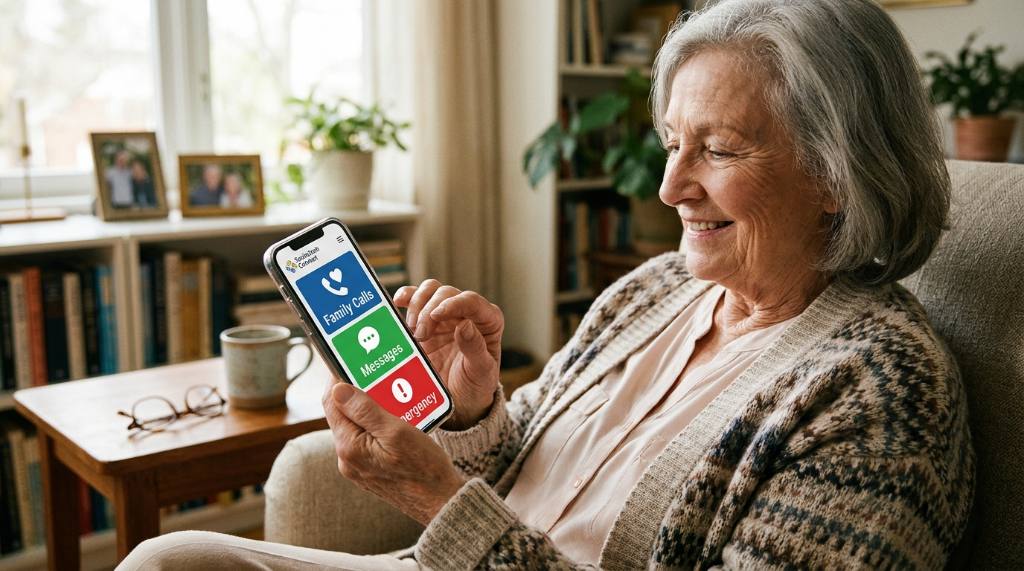
Finding the right phone for an older parent or grandparent feels like a minefield. You want something that won’t frustrate them, that they can actually see and hear, and that you won’t end up troubleshooting every week. But the truth is, the best phone for seniors elderly users isn’t always the one marketed as a “senior phone.” It’s usually a standard smartphone with the right accessibility settings turned on, and picking wrong can lead to a $300 paperweight and a frustrated family member.
Our research shows that many families default to cheap “senior-friendly” flip phones, only to discover they have poor cameras, outdated software, and expensive monthly plans. Meanwhile, a mid-range smartphone with large text, a simplified home screen, and a good video call camera often serves far better. As of 2026, the gap between dedicated senior devices and accessible mainstream phones has widened significantly, making the decision more about setup than hardware.
Let’s break down what actually matters so you can choose with confidence.
Why This Comparison Matters More Than You Think
Choosing a phone for an elderly person isn’t like buying one for yourself. You’re not weighing camera megapixels against battery life for your own daily habits. You’re making a decision on behalf of someone who might have declining vision, arthritis, or a low tolerance for technology that doesn’t work immediately.
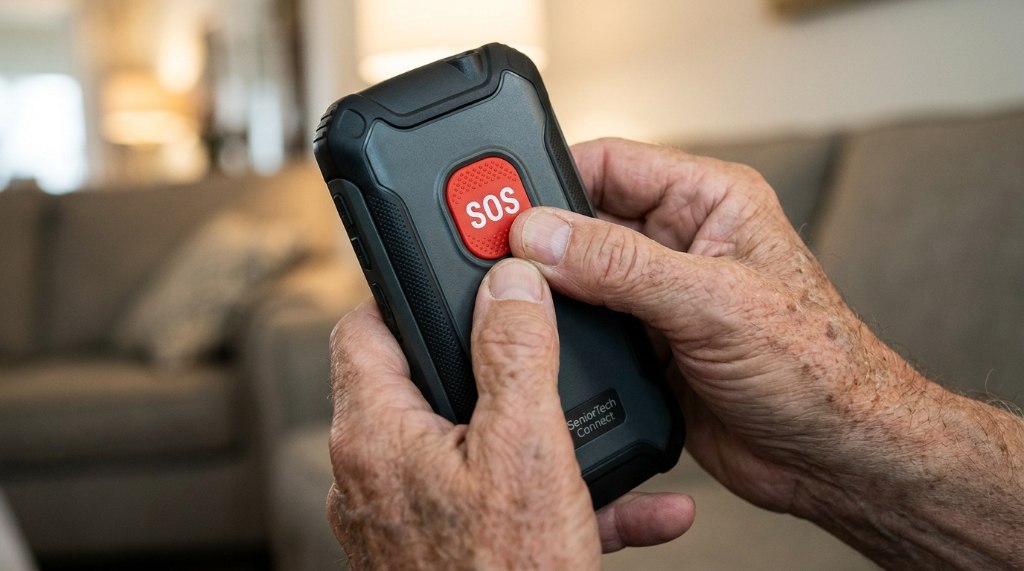
The stakes are higher than convenience. A phone that’s too complicated gets abandoned, leaving the senior isolated. A phone that’s too basic lacks the safety features, like emergency SOS or location sharing, that give families peace of mind.
And a phone that dies by mid-afternoon because the battery is weak becomes a source of daily stress rather than a tool for connection.
The real cost of a bad choice isn’t the price tag. It’s the hours of tech support, the frustration on both sides, and the possibility that the phone just ends up in a drawer. Manufacturers and accessibility standards have evolved, but most families don’t know what to look for beyond “big buttons.” That’s why this comparison matters: getting it right the first time saves money, time, and a lot of unnecessary friction.
What Actually Matters in a Phone for an Older User
Before you even look at specific models, you need a clear picture of what makes a phone genuinely usable for an older adult. It’s not about the most features or the fastest processor. It’s about the basics working well and being adjustable to their specific needs.
Screen Size and Text Scaling
The display is the first barrier. If they can’t read the screen, nothing else matters. Look for a phone with a screen of at least 6.0 inches.
That’s not just for entertainment; it means larger icons and more room for text. But size alone isn’t enough. The phone must support aggressive text scaling and display zoom.
- iPhone Display Zoom: This setting enlarges the entire interface, not just the text. Icons, buttons, and menus all become bigger.
- Android Font Size: Samsung and Google phones let you increase font size dramatically, often up to 200% or more.
- Bold Text: A simple toggle that makes everything heavier and easier to read, especially in bright sunlight.
Our research confirms that the combination of a large screen and maximum text size is the single most impactful accessibility feature you can enable.
Battery Life and Charging Simplicity
Forget about a phone that needs charging twice a day. It becomes a constant worry for someone who isn’t used to managing a device. A phone with a battery rating of at least 4,000 mAh should easily last a full day, if not two, with moderate use.
Also, consider how they charge it. A standard USB-C port is the modern baseline. Wireless charging is a luxury that removes the fiddly act of plugging in a cable, which can be difficult for someone with arthritis.
If they can just set the phone down on a charging pad at night, they’re far more likely to keep it topped up.
Camera Quality for Video Calls
Here’s the overlooked spec: the front-facing camera. A poor front camera makes video calls grainy and dim, which is a major disappointment for a grandparent who wants to see a new baby or a distant relative. Look for a front camera of at least 12 megapixels.
That ensures clear, bright video on FaceTime, WhatsApp, or Zoom calls. The phone’s processor also matters for video call stability, so avoid the very bottom of the budget range.
Hearing Aid Compatibility and Speaker Volume
Many seniors have hearing loss. A phone that’s quiet or interferes with their hearing aids is useless. The iPhone is notably strong here, with built-in support for Bluetooth hearing aids and a certification for hearing aid compatibility per FCC standards.
Many Android flagships also support Bluetooth hearing aids, but you need to check the specific model’s compatibility.
Beyond hearing aids, the earpiece and speaker volume need to be loud and clear. A phone with a big speaker grille and good audio processing makes a huge difference in everyday calls.
Durability and Ease of Holding
Phones get dropped. That’s a fact of life. A slippery glass phone is a hazard for someone with limited grip.
Look for a phone with a matte finish or one that pairs well with a rugged case. They also need to be able to hold it comfortably. A phone that’s too large might be hard to grip, while one that’s too small has tiny buttons.
It’s a balance.
iPhone vs. Android vs. Senior-Specific Phones: The Honest Breakdown
This is the core decision, and it’s not about which operating system is “better.” It’s about which one fits the senior’s existing habits and your ability to support them.
iPhone: The Consistency Champion
Best for: Seniors who have never used a smartphone, or families where everyone else has an iPhone.
The iPhone’s biggest advantage is consistency. Every app works the same way. The settings are in the same place.
There’s no confusing “back” button that changes location, which is a notorious problem on Android. The interface is also harder to break; it’s more difficult for a user to accidentally delete an app or change a critical setting.
- Accessibility: Features like Display Zoom, Bold Text, and Magnifier are excellent and easy to find.
- FaceTime: It’s built-in and works seamlessly with other Apple devices. No extra apps to download or accounts to manage.
- Long-term support: Apple provides software updates for 5 to 7 years, meaning the phone stays secure and functional for a long time.
- The catch: They’re more expensive upfront. The iPhone SE is the budget option, but it’s still pricier than many Android phones.
If the family is all on iPhones, this is the obvious choice. Tech support becomes much easier because you already know the interface.
Android: The Flexible Alternative
Best for: Seniors on a strict budget, or families already using Android phones.
Android offers more variety in price and features. The Samsung Galaxy A-series is a popular choice because it strikes a good balance between cost and quality. Samsung’s Easy Mode simplifies the home screen with big icons and large text, but it’s still a full Android phone underneath, so it can grow with the user’s skills.
- Accessibility: Google’s Android Accessibility Suite is powerful, with features like TalkBack and Select to Speak.
- Hardware choice: You can find phones with huge batteries, big screens, and even physical buttons if you look hard enough.
- Customization: You have more control over the home screen layout with launchers like Big Launcher, which are designed specifically for seniors.
- The catch: The interface is less consistent. The “back” button can be in different places on different apps, and it’s easier to accidentally change settings.
Android is a great option if you’re willing to spend 20 minutes setting it up and simplifying it. It’s also the only choice if you need to stay under a strict budget of around $200.
Senior-Specific Phones: When They Actually Make Sense
Phones like the Jitterbug Flip2 or the Jitterbug Smart4 are marketed directly at seniors. They have big buttons, a simple interface, and often include features like medication reminders and a 5-Star urgent response button.
The good:
- They’re incredibly simple. There’s virtually no learning curve.
- The dedicated emergency button is a genuine selling point for peace of mind.
- The interface can’t be “broken” easily.
The bad:
- The software is often outdated and rarely receives security updates, which is a significant risk.
- The cameras are poor, making video calls a subpar experience.
- The monthly plans are expensive. You pay a premium for the simplicity.
- You can’t download apps like WhatsApp, which isolates the user from the wider family group chat.
Our verdict: These phones only make sense for a senior with severe cognitive decline or someone who absolutely refuses to interact with a touchscreen. For most people, a smartphone set up in Easy Mode is a better investment that lasts longer and does more.
Best Phone Picks by Situation
Now that you know what to look for, here are the specific recommendations based on the most common scenarios.
Best Overall for Most Seniors: iPhone SE
This is our top recommendation for the majority of families. The iPhone SE has a familiar Home button, which is a huge comfort for anyone who’s used an older phone. It’s compact, fits easily in a pocket, and has the excellent accessibility suite that iOS is known for.
As of 2026, it remains the most reliable “just works” option.
- Why it wins: Familiarity, long-term software support, and the same accessibility features as the flagship iPhones.
- Trade-off: The battery life is average. A heavy user might need a mid-day top-up.
Best Budget Android: Samsung Galaxy A15
If you’re paying out of pocket and want to keep costs down, the Galaxy A15 is the best value. It has a large, bright screen, a massive 5,000 mAh battery that easily lasts two days, and Samsung’s Easy Mode for simplification. It also has expandable storage, which is useful for photos and videos.
- Why it wins: Price, battery life, and a quality screen that’s easy to read.
- Trade-off: Samsung’s software has more features and settings, which can be overwhelming. It requires a proper setup from you.
Best for Vision or Dexterity Challenges: iPhone 15 Plus
When someone has significant vision loss, arthritis, or hand tremors, the larger screen is the solution. The iPhone 15 Plus has a 6.7-inch display that, combined with Display Zoom and Bold Text, becomes incredibly readable. The Magnifier app can also double as a digital magnifying glass.
- Why it wins: The biggest standard screen on an iPhone, and Face ID means no typing in a passcode, which is a lifesaver for stiff fingers.
- Trade-off: It’s expensive and heavy. It won’t fit in a small pocket easily.
Best for Seniors Who Refuse Smartphones: Jitterbug Flip2
If you’ve tried smartphones and they’ve failed, this is the fallback. The Jitterbug Flip2 is a simple flip phone with a clear screen and a dedicated emergency button. It’s designed for one thing: easy communication.
- Why it wins: Extreme simplicity and the 5-Star Urgent Response button.
- Trade-off: You’ll pay more per month for the plan, and the phone can’t do much beyond calls and texts. No WhatsApp, no maps, no video calls.
The 20-Minute Setup That Prevents 20 Hours of Frustration
The phone itself is only half the battle. How you configure it makes the difference between a tool your parent uses daily and a device they’re scared of. Plan to spend about 20 minutes on this setup process, ideally with the senior present.
A Step-by-Step Guide to a Senior-Friendly Setup
- Set up the phone and connect to Wi-Fi. Use a few strong passwords and store them in your own notes.
- Turn on Display Zoom (iPhone) or Easy Mode (Samsung). This instantly enlarges all icons and text.
- Maximize the system font size and enable Bold Text. This helps readability without needing glasses.
- Remove or hide every app they don’t need. Keep only Phone, Messages, Camera, Photos, and one video-calling app like WhatsApp or FaceTime. Delete or hide the rest.
- Create a simplified home screen. On iPhone, put all the rarely-used Apple apps into a folder called “Extras” and move it to the second page. On Android, make sure the only icons on the first page are the essential ones.
- Set up Emergency SOS and Medical ID (iPhone) or Emergency Contacts (Android). This connects them to family and emergency services quickly.
- Enable “Silence Unknown Callers” (iPhone) or Block Unknown Numbers (Android). This is the first and most effective defense against scam calls.
- Set up a charging routine. Place a charging pad or a short cable and charging brick next to their bed. Show them how to plug it in and make it a nightly habit.
- Add clear, large photos to contacts. Seeing a face makes incoming calls obvious without reading.
- Test a video call together before they’re alone with the phone. This builds confidence and shows them it works.
Getting Them Involved Without Overwhelming Them
Don’t just hand over a finished phone. Sit with them and walk them through the basics. Show them the screen, point out the icons, and let them make one call to you.
The goal is to build a mental model: “This is where I answer, this is where I call my daughter, this is the camera.”
A physical cheat sheet with a few screenshots can be a lifeline. A single page laminated with “How to answer a call” and “How to video call” is far more useful than a manual.
Remote Support Tools for Ongoing Help
You won’t be there every time they have a question. Set up remote access tools that let you help from your own phone.
- iPhone: Use FaceTime’s SharePlay screen sharing or Family Sharing to manage their screen time and app installs remotely.
- Android: Use Google Family Link for app management, or a tool like TeamViewer QuickSupport for full remote control (with their permission).
These tools mean a “help, I’m stuck” call doesn’t have to be a guessing game over the phone.
Mistakes Families Make When Buying a Phone for an Elderly Parent
You’re already doing better than most by researching. But there are a few classic traps that trip up well-meaning adult children. Avoid these, and you’ll save yourself a lot of headaches.
Buying the Cheapest Device Possible
That $40 Android phone with 2GB of RAM will feel slow and laggy within weeks. It’ll struggle with video calls, and the screen will be dim and hard to read. The frustration this causes makes the senior feel like they “can’t learn,” when in reality, the hardware is just bad.
Spend a little more. A $200 phone is a better investment than a $50 one that fails.
Skipping the Walkthrough Session
Setting up the phone and handing it over without explanation is a recipe for disaster. You understand how the interface works because you use one every day. They don’t.
A 20-minute walkthrough session is the most valuable thing you can do. It turns a mysterious object into a tool.
Ignoring the Family Ecosystem
If everyone in the family uses iPhones, buying grandpa an Android creates a support gap. You won’t know how to fix his phone, and he won’t be able to use FaceTime. Matching the ecosystem makes everything easier.
If you’re an Android family, an iPhone is a mistake regardless of which is “better.”
Overlooking Scam Protection
Seniors are often targeted by scammers. Failing to set up call blocking and educate them about common scams is a major oversight. It’s not just about the phone; it’s about protecting their finances and their peace of mind.
A single scam call that confuses them can erode their confidence in using the device at all.