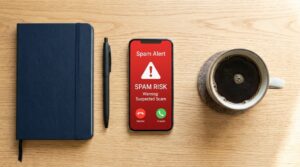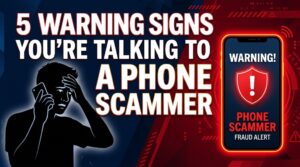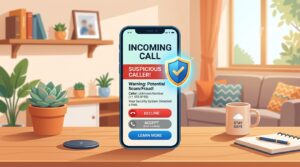

You’re working on your computer when a full-screen alert pops up: “CRITICAL ERROR! Your Windows license has expired. Call Microsoft immediately.” A phone number flashes, and the urgency feels real.
But here’s the truth: this is one of the most common ways scammers gain access to your computer and your money. Learning how to protect against tech support scams starts with understanding how they work and why they’re so effective.
According to the FBI’s Internet Crime Complaint Center (IC3), Americans reported losses exceeding $406 million to tech support scams between 2021 and 2023, with the average victim losing around $32,000. These scams are sophisticated, professionally scripted, and rely on psychological manipulation rather than technical skill. The good news?
Once you know what to look for, they become remarkably easy to spot and stop.
Quick Answer
Never trust unsolicited tech support contact. Real companies never call, email, or pop up warnings. Hang up immediately.
Close suspicious browser alerts without clicking. Never grant remote access to strangers. Never pay with gift cards or wire transfers.
If you’re unsure, contact the company directly using their official website. Report scams to the FTC at ReportFraud.ftc.gov.
Key Takeaways
- Legitimate tech companies never initiate unsolicited contact about viruses or security problems
- Scammers use urgency, fear, and authority to bypass your critical thinking
- Remote access tools like AnyDesk or TeamViewer are common entry points for fraud
- Gift cards, wire transfers, and cryptocurrency are always scam payment methods
- Reporting scams helps authorities track and shut down criminal operations
What Tech Support Scams Look Like in 2026
Tech support scams have evolved into three primary delivery methods. The classic phone call remains common, but pop-up alerts and phishing emails now account for a growing share of incidents. Each method uses the same psychological playbook: create panic, establish fake authority, and push you toward immediate action.
The phone call version typically starts with a caller claiming to be from Microsoft, Apple, or your internet provider. They’ll say your computer is sending out error signals or that your IP address has been compromised. The script is designed to sound technical enough to convince you they have real access to your system.
Pop-up scams work differently. You’ll be browsing when suddenly a full-screen alert appears, often with a “Windows Security” or “Apple Security” logo. A recorded voice may even warn you that your computer is locked.
These pop-ups freeze your browser and display a toll-free number. When you call, you reach a scammer who “confirms” the fake problem and asks for remote access.
The Three Delivery Methods
| Method | How It Works | Typical Trigger |
|---|---|---|
| Phone call | Scammer claims to be tech support | Spoofed caller ID showing Microsoft or Apple |
| Pop-up alert | Fake security warning locks browser | Visiting ordinary websites |
| Phishing email | Fake invoice or renewal notice | Appears to come from antivirus provider |
Email-based scams are the newest twist. You receive a legitimate-looking invoice for antivirus renewal or a security subscription. The email includes a phone number to “cancel” or “dispute” the charge.
When you call, the scammer asks for remote access to “fix” the fake billing error.
Red Flags: How to Spot a Scam Before You Fall for It
Five specific warning signs appear in nearly every tech support scam. If you encounter even one, it’s almost certainly fraud. Real tech support doesn’t operate this way.
The first red flag is unsolicited contact. Microsoft, Apple, and legitimate security companies never call you about viruses or compromised accounts. They also never display full-screen warnings with phone numbers.
The Federal Trade Commission (FTC) confirms that legitimate companies simply don’t operate this way.
The second red flag involves payment methods. Scammers almost exclusively request payment via gift cards, wire transfers, or cryptocurrency. These methods are untraceable and irreversible.
Real companies use credit cards and invoicing.
Third, watch for remote access requests. A legitimate technician will never ask for remote access to your computer unless you contacted them first with a known issue. Granting access gives scammers control over your entire system, including banking sessions and password managers.
Warning Signs That Always Signal a Scam
- Caller claims your computer has a virus and offers to fix it remotely
- Urgent warnings about expired licenses or compromised accounts
- Requests to visit specific websites like “amantec.com” or “supportme.com”
- Demands for immediate payment to prevent damage or restore service
- Offer of a “refund” that requires access to your bank account
The fourth red flag is the refund trick. Scammers claim you were overcharged for services and need to “verify” your bank account to process a refund. They may even instruct you to log into your banking app and read them verification codes.
Once they have that information, they drain your account.
The fifth is pressure tactics. If someone demands immediate action, threatens consequences, or keeps you on the phone for extended periods, that’s manipulation. Real support representatives give you time to think and verify information independently.
What to Do If a Scammer Contacts You
Your response depends on how the scammer reaches you. Each situation requires a different approach, but the core principle remains the same: disengage immediately.
If they call you. Say one sentence and hang up. “I’m not interested” or “I don’t need help” followed by ending the call. Don’t engage in conversation.
Don’t try to argue. These callers are professional manipulators trained to keep you talking. The longer you stay on the line, the more pressure you’ll face.
After hanging up, block the number if your phone supports it. You can also report the call to the FTC at ReportFraud.ftc.gov.
If a pop-up appears. Do not call the number on the screen. Do not click anywhere on the pop-up. The fastest way to close it varies by browser and operating system.
On Windows, press Ctrl+Alt+Delete and open Task Manager, then force-quit your browser. On Mac, press Command+Option+Escape and force-quit the browser. If that doesn’t work, restart your computer entirely.
The pop-up will not damage your system; it’s just a webpage trick.
If you receive a suspicious email. Do not call any phone numbers listed. Do not click links. Forward the email to the real company’s security team if you want to report it, then delete it.
Microsoft provides guidance on how to report phishing emails on their official security website.
Immediate Steps After Hanging Up
- Block the phone number and add it to your spam list
- Run a full antivirus scan using your installed security software
- Change passwords for email, banking, and other critical accounts
- Enable two-factor authentication where available
- Report the incident to the FTC and your phone carrier
The most important action is disconnecting from the scammer. Every additional minute you spend on the phone increases the risk of falling for escalating pressure tactics. Scammers know their window is small, so they’ll throw every emotional trigger at you to keep you engaged.
What to Do If You Already Gave Them Access
If you granted remote access, acted quickly, but don’t panic. The steps below can help you contain the damage and secure your accounts. Time is critical, so work through this checklist in order.
Step 1: Disconnect from the internet. Turn off your Wi-Fi or unplug your ethernet cable immediately. This severs the scammer’s connection to your computer. If they’ve installed remote access software, the connection will break when you go offline.
Step 2: Uninstall remote access software. Reconnect to the internet, then remove any remote access tools the scammer may have installed. Common programs include AnyDesk, TeamViewer, and LogMeIn. Go to your control panel, find these programs, and uninstall them.
Also check your browser extensions and remove anything unfamiliar.
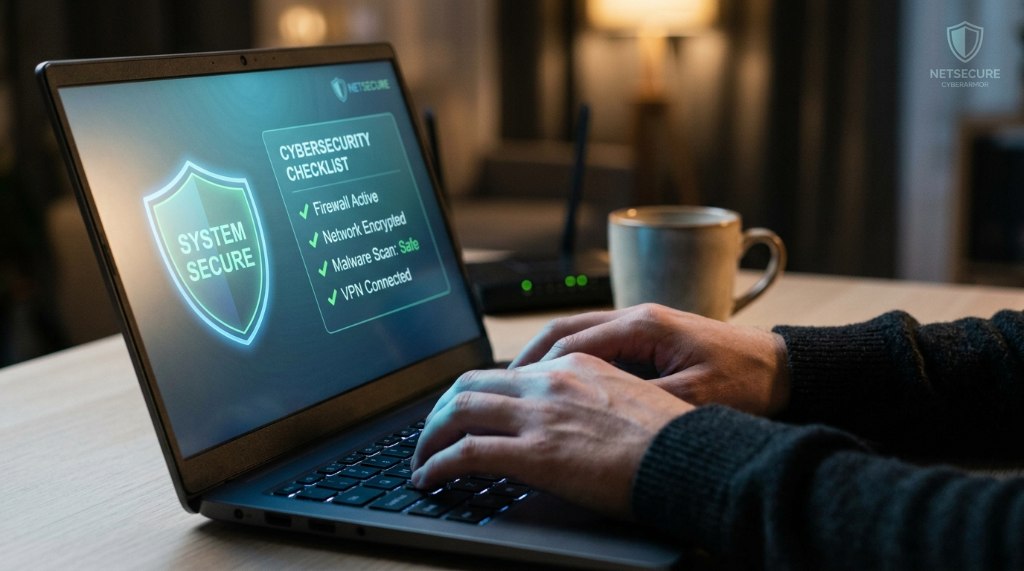
Step 3: Run a full security scan. Use your installed antivirus software to run a complete system scan. Windows Defender on Windows 10 and 11 provides adequate protection for most home users. If your scan detects threats, remove them and run the scan again to confirm your system is clean.
Step 4: Change your passwords. This applies to every important account: email, banking, social media, and shopping sites. Start with email and banking, since those are most valuable to scammers. Use a different password for each account, and enable two-factor authentication wherever it’s available.
Step 5: Contact your bank. If you provided any financial information, contact your bank or credit card company immediately. Explain that you may have been the victim of a scam. They can monitor your accounts for fraudulent activity and help you dispute unauthorized charges.
If They Got Your Money
- Call your bank or credit card provider to report unauthorized transactions
- Contact the gift card issuer if you purchased gift cards (some companies can freeze funds)
- File a complaint with the FTC at ReportFraud.ftc.gov
- Report the incident to your local police department for documentation
If you paid with a gift card, contact the issuer quickly. While recovery is rare, some companies can freeze the funds if you act fast. The Federal Trade Commission provides step-by-step guidance on their website about what to do after paying a scammer.
If you believe your identity was stolen, visit IdentityTheft.gov for a personalized recovery plan. This federal resource helps you create an action plan based on your specific situation, including credit freezes, fraud alerts, and disputing unauthorized charges.
How to Protect Your Family, Especially Older Relatives
Older adults are disproportionately targeted by tech support scammers. The FBI’s 2023 IC3 report shows that victims over 60 accounted for over $3.4 billion in total fraud losses across all scam types. Tech support scams specifically hit this demographic hardest because scammers exploit trust in authority figures and fear of breaking expensive technology.
The most effective protection is preparation, not reaction. Sit down with your relatives and walk them through what legitimate tech support looks like. Show them that Microsoft and Apple never call unsolicited.
Practice what to say when a suspicious caller reaches out. Repetition builds muscle memory, which matters more than theory when a scammer is on the phone.
Practical Setup Changes for Safer Devices
- Turn on call blocking for unknown numbers on their smartphone
- Set up a verbal password for any caller claiming to be from a company
- Install ad-blocking browser extensions to reduce scam pop-ups
- Disable browser notifications that scammers abuse to show fake alerts
- Set up a family group so you receive alerts for new device logins
Scammers often target landlines because they’re harder to block. If your relative still uses a home phone, consider switching to a VoIP service like Ooma or a call-blocking device such as CPR V5000. These tools screen calls before they reach your loved one and display verified caller names.
How to Report Tech Support Scams
Reporting scams is essential, even if you didn’t lose money. Your report helps authorities identify patterns, track criminal networks, and build cases against call centers operating overseas.
In the United States, file a complaint with the Federal Trade Commission at ReportFraud.ftc.gov. The FTC aggregates these reports and shares them with law enforcement agencies. You should also report to the FBI’s Internet Crime Complaint Center at ic3.gov, especially if you lost money or provided personal information.
For readers in other countries, your local agencies handle these reports. The Canadian Anti-Fraud Centre at antifraudcentre-centreantifraude.ca covers Canada, Action Fraud at actionfraud.police.uk covers the UK, and Scamwatch at scamwatch.gov.au covers Australia. Each agency publishes annual reports that shape public awareness campaigns.
What to Include in Your Report
- The phone number and name used by the scammer
- The company name they claimed to represent
- The date and time of the contact
- Any payment amounts and methods
- Descriptions of the script or pop-up messages
If the scammer used Microsoft or Apple branding, report it to those companies directly. Microsoft maintains a dedicated reporting page for impersonation scams, and Apple has a similar process. These companies cooperate with law enforcement to shut down fraudulent operations.
How to Verify Legitimate Tech Support
When you need real tech support, always initiate contact yourself. Use the official website of the company you trust. Never call a number from a pop-up, email, or caller ID display.
For Microsoft products, navigate to support.microsoft.com directly. For Apple, visit support.apple.com. Both sites offer live chat, scheduled callbacks, and appointment booking.
These official channels never ask for gift card payments or remote access without a scheduled appointment.
If you see a warning on your screen claiming to be from your antivirus provider, open your antivirus software directly. Legitimate alerts appear inside the application itself, not as browser pop-ups. When in doubt, close your browser completely and open your security software from your desktop or start menu.
Common Mistakes That Lead to Scam Success
Even savvy computer users fall for tech support scams. Understanding these common mistakes helps you avoid them.
The first mistake is calling the number on a pop-up. These screens are designed to look official, complete with company logos and system sounds. But no legitimate software displays a toll-free number to call for immediate assistance.
Real security alerts direct you to open the software itself.
The second mistake is trusting caller ID. Scammers use VoIP technology to spoof legitimate numbers, making it appear that Microsoft or Apple is actually calling. Caller ID is easily manipulated and should never be treated as proof of identity.
Other Common Pitfalls
- Searching for support numbers online without verifying the website domain
- Letting a caller “confirm” your computer’s error codes while on the phone
- Providing verification codes from texts or emails to any caller
- Paying with gift cards “refundable” after the service is complete
The third mistake is allowing remote access during a “diagnostic” call. Once a scammer has control of your screen, you’ve lost control. They can disable security software, install malware, and capture your passwords while you watch.
Fourth, be wary of urgency. Scammers create artificial deadlines to prevent you from thinking clearly. “Your account will be suspended in 30 minutes” or “Your files will be encrypted unless you act now” are pressure tactics designed to override logic.
Frequently Asked Questions
Can tech support scammers actually access my computer?
Yes, if you grant them remote access or install software they provide. They use legitimate tools like AnyDesk, TeamViewer, and LogMeIn. Once connected, they can view your screen, access files, and install malicious software.
Never grant remote access to unsolicited callers.
What happens if I gave a scammer my credit card number?
Contact your bank or credit card issuer immediately. Report the unauthorized transaction and request a new card. Most banks offer zero liability protection for fraudulent charges.
You should also place a fraud alert on your credit report through Equifax, Experian, or TransUnion.
Does Microsoft ever call customers about viruses?
No. Microsoft does not make unsolicited phone calls to customers about security issues. Any call claiming to be from Microsoft about a virus or compromised account is a scam.
The company publishes this statement on its official security website.
Can a pop-up actually damage my computer?
No. Browser pop-ups are just webpages with scripting. They can freeze your browser or display alarming messages, but they cannot harm your computer.
You can close them by force-quitting your browser or restarting your device.
What should I do if I paid a scammer with gift cards?
Contact the gift card issuer immediately. Companies like Target, Best Buy, and Amazon have fraud hotlines. While recovery is not guaranteed, some companies can freeze unredeemed funds.
Report the incident to the FTC and file a police report for documentation.
How do I remove remote access software from my computer?
Open your system settings and uninstall any programs you didn’t install yourself. Common names include AnyDesk, TeamViewer, LogMeIn, and Zoho Assist. Then run a full antivirus scan and change your passwords.
If you’re unsure, take your computer to a reputable repair shop.
Final Word
Tech support scams succeed because they exploit fear and urgency. Now you know the warning signs, the scripts scammers use, and the exact steps to protect yourself and your family. Your best defense is simple: never trust unsolicited contact, never grant remote access, and never pay with gift cards.
If something feels off, hang up and verify independently.
Spread this knowledge to your older relatives and friends. A quick conversation today could save them thousands tomorrow. And if you ever experience an attempted scam, report it to the FTC.
Every report helps law enforcement track and dismantle these criminal networks. Stay skeptical, stay safe, and remember: legitimate tech support never calls you first.
Let me check where we are. The article has already covered sections 1-10 and the FAQ plus conclusion, which completes the full TOC. Let me verify what sections remain from the approved TOC: