Shopping for the best cell phones for visually impaired seniors means facing a wall of glass screens, tiny icons, and menus built for sharp eyes. A parent or grandparent wants to call family without squinting, and you want a phone that actually helps.
Quick answer: Pick a phone with a large, high-contrast screen, spoken feedback (screen reader or voice assistant), and simple navigation. The Apple iPhone 16 with VoiceOver and the Samsung Galaxy A55 with TalkBack lead the pack. Budget-conscious buyers should look at the Google Pixel 8a, which pairs a clean interface with strong accessibility tools.
This guide ranks five phones for low-vision users, compares screen size, price, and accessibility features, and explains which settings matter most. You will finish with a clear pick for your situation.
Quick picks at a glance
Here are the five phones worth your attention, grouped by the buyer each one suits best.
Best overall: Apple iPhone 16. Apple’s VoiceOver screen reader is the most polished on the market. It reads everything on screen, including buttons, app labels, and incoming messages. The 6.1-inch display supports very large text sizes, and Siri handles calls and messages by voice. The trade-off is the price and Apple’s closed ecosystem.
Best for Android users: Samsung Galaxy A55 5G. This mid-range phone carries a 6.6-inch screen and Samsung’s TalkBack screen reader. It also includes a high-contrast mode and magnifier shortcuts. The price sits well below flagship Android models, and battery life lasts a full day of heavy calling.
Best budget pick: Google Pixel 8a. The Pixel 8a runs a clean version of Android with TalkBack and the Lookout app, which describes the world through the camera. It costs less than either phone above. Seniors who mostly call, text, and browse will find everything they need here.
Best simple phone: Jitterbug Smart4. This phone from Lively strips the interface down to large tiles and big text. It includes a dedicated urgent-response button and comes with a simplified menu. It suits seniors who find full smartphones overwhelming.
Best large-screen option: Samsung Galaxy S24 Ultra. The 6.8-inch display is the biggest on this list, which helps users with partial sight read comfortably. It carries every accessibility tool Samsung offers, plus an S Pen for precise tapping. The price is the highest here.
Families splitting the cost should note that the S24 Ultra’s price often includes trade-in credit, which drops the gap with the iPhone 16. Ask the carrier whether an older phone qualifies before assuming the flagship is out of reach.
Prices vary by carrier, storage, and promotions. Confirm the final cost with the retailer, and ask whether the phone is locked to a specific network.
Comparison table
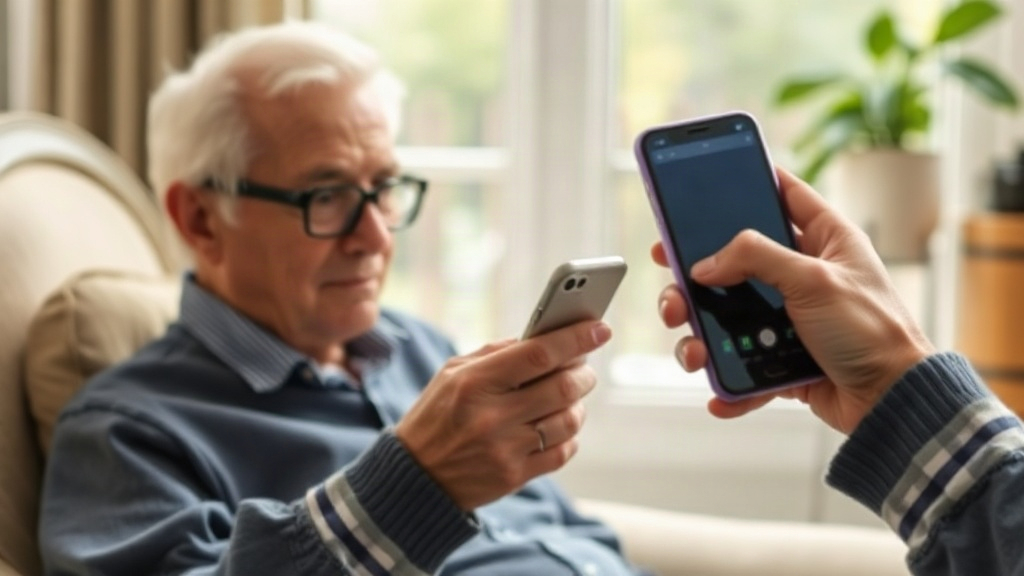
Comparison: all five phones side by side
The table below compares screen size, typical price, screen reader, and the buyer each phone fits best. Prices reflect common unlocked retail figures and shift with sales.
| Phone | Screen size | Typical price | Screen reader | Best for |
|---|---|---|---|---|
| Apple iPhone 16 | 6.1 in | About $799 | VoiceOver | Best overall |
| Samsung Galaxy A55 5G | 6.6 in | About $450 | TalkBack | Android on a budget |
| Google Pixel 8a | 6.1 in | About $499 | TalkBack | Best value |
| Jitterbug Smart4 | 6.2 in | About $150 | Voice assist | Simplest interface |
| Samsung Galaxy S24 Ultra | 6.8 in | About $1,299 | TalkBack | Largest screen |
Notice how the price gap runs from roughly $150 to $1,299. The cheapest phone is not the weakest for this audience, though. The Jitterbug trades app variety for simplicity, which suits many seniors better than a flagship.
Screen size alone does not determine readability. Text scaling, contrast, and screen brightness matter just as much. A 6.1-inch phone with 200% text scaling can be easier to read than a 6.8-inch phone left at default settings.
Two more numbers deserve attention. The iPhone 16 and Pixel 8a match at 6.1 inches, yet owners often report that VoiceOver’s reading cadence feels easier to follow than TalkBack’s, which speaks slightly faster by default. Adjusting speech rate resolves this, so budget a few days for tuning.
Weight matters for hands weakened by arthritis. The Galaxy S24 Ultra tips past 8 ounces, while the Pixel 8a stays closer to 6.5 ounces. A lighter phone held one-handed for a long call strains the wrist less.
The table cannot show how each phone behaves after a software update. Apple and Google push accessibility fixes quickly across their lineups, and Samsung’s flagships receive them promptly too. Mid-range and simplified models sometimes wait months, so confirm the update policy.
Storage tiers also hide costs. The Jitterbug’s low price assumes a Lively plan, and skipping that plan removes urgent-response support. Compare total first-year costs rather than sticker prices alone.
Individual reviews of the top picks
Each review below covers the accessibility features that matter most, then lists the pros and cons plainly. Prices are typical unlocked figures, and every phone here ships with a screen reader or voice assistant out of the box.
Apple iPhone 16: the most polished accessibility suite
VoiceOver on iOS reads buttons, messages, and web pages with clear pronunciation. The Rotor gesture lets users jump between headings and links with two fingers. Seniors who learn a few gestures gain real independence.
Pros:
- VoiceOver ranks among the most accurate screen readers available.
- Text scales to very large sizes without breaking app layouts.
- Siri handles calls, messages, and reminders hands-free.
- Regular software updates keep accessibility features current.
Cons:
- The $799 starting price is steep for a basic phone.
- The gesture system takes practice for first-time users.
- Repairs and accessories cost more than Android equivalents.
Samsung Galaxy A55 5G: strong Android value
Samsung’s TalkBack works well, and the phone adds a magnifier shortcut and high-contrast themes. The 6.6-inch screen keeps text legible, and the battery lasts through a full day.
Pros:
- TalkBack reads menus and notifications reliably.
- The mid-range price leaves room in the budget for accessories.
- The larger screen helps users with partial sight.
Cons:
- Samsung’s menu layout buries some settings two or three levels deep.
- Preinstalled apps add clutter that confuses new users.
Google Pixel 8a: the budget-friendly choice
The Pixel 8a runs near-stock Android, so TalkBack and the Lookout app sit front and center. Lookout uses the camera to identify objects and read printed text aloud.
Pros:
- Clean software keeps the interface predictable.
- Lookout reads labels, signs, and documents aloud.
- The price sits below both phones above.
Cons:
- The 6.1-inch screen is smaller than the Galaxy A55’s.
- Lookout needs steady hands to frame text correctly.
Jitterbug Smart4: built for simplicity
Lively designed this phone around large tiles and spoken menus. A dedicated button connects to urgent response services, which gives family members peace of mind.
Pros:
- The home screen shows a short list of large, labeled tiles.
- The urgent-response button reaches trained agents quickly.
- The price is the lowest on this list.
Cons:
- The app store is limited compared with full Android.
- The phone depends on Lively’s service plans for full features.
Samsung Galaxy S24 Ultra: the biggest screen
The 6.8-inch display gives low-vision users the most room to enlarge text. The S Pen lets users tap small targets precisely, and TalkBack works across every app.
Pros:
- The largest screen on this list supports very large text.
- The S Pen helps users who struggle with finger accuracy.
- Samsung’s accessibility menu centralizes every tool.
Cons:
- The $1,299 price is hard to justify for basic use.
- The phone is heavy and may feel awkward in smaller hands.
Buying guide: how to choose
Start with the screen reader, because it determines how much of the phone a low-vision user can actually operate. VoiceOver and TalkBack both read the full interface, and both respond to gestures. Test each one before buying, since gesture patterns differ and personal preference matters.
Speech rate and voice pitch settings deserve a test alongside gesture patterns. Some users follow faster speech comfortably, while others need a slower cadence to catch every word. Pair the screen reader test with a trial call through the speaker to judge clarity in a noisy room.
Screen size and text scaling
A larger screen helps, but text scaling does more work. Check how far the phone enlarges text before layouts break. Most modern phones handle 200% scaling well, though some apps clip labels at that size.
Brightness and contrast also matter. Look for a display that reaches high brightness for outdoor use and offers a high-contrast mode for washed-out vision.
Voice control and physical buttons
Voice assistants let users place calls and send messages without touching the screen. Confirm the assistant works offline for basic tasks, because connectivity drops in some homes and rural areas.
Physical buttons still serve a purpose. A dedicated volume key or side button assigned to the screen reader gives users a reliable fallback when gestures fail.
Turn on the screen reader and set text to maximum before you hand over the phone. Walking through the setup together prevents frustration on day one.
Budget and ongoing costs
The purchase price is only part of the cost. Factor in a protective case, a car mount, and the monthly plan. Budget phones save money upfront, but a senior who abandons a confusing phone wastes the savings.
Ask about carrier discounts for seniors and trade-in credits. Many carriers also offer free accessibility setup help in stores, which reduces the learning curve.
Trying before buying
Visit a store and ask to enable accessibility features on a display model. Spend ten minutes with the screen reader active, and try placing a call by voice. The phone that feels natural in that short test is usually the right one.
FAQ
Can a visually impaired senior use a smartphone without a screen reader?
Yes, but with limits. Large text, high contrast, and voice assistants cover basic calling and messaging. A full screen reader unlocks settings, apps, and web browsing, which is where most daily tasks now live.
Is an iPhone or an Android phone easier for low vision?
Both work well, and the choice depends on the user. VoiceOver on iPhone is often praised for smooth reading and consistent gestures. TalkBack on Android offers more hardware variety at lower prices. Try both before deciding.
Do these phones work with hearing aids as well?
Most modern phones support hearing aid compatibility, including the iPhone 16 and the Samsung models listed here. Check the specific model’s hearing aid rating with the carrier, especially if the user wears a telecoil-equipped aid.
How much should I expect to pay?
Expect roughly $150 for a simplified phone and $450 to $800 for a capable smartphone. Flagship models run above $1,000. A protective case and a senior plan add modest monthly costs.
Can family members set up the phone remotely?
Yes. Apple and Google both offer remote support tools, and stores will configure accessibility settings during purchase. Setting up the screen reader before the first use saves hours of frustration.
Final verdict
The best cell phones for visually impaired seniors balance a strong screen reader with a screen the user can actually read. The iPhone 16 wins for most families because VoiceOver is reliable and Siri handles daily tasks by voice. Android users should choose the Galaxy A55 5G for its larger screen and lower price, while the Pixel 8a suits tight budgets. The Jitterbug Smart4 remains the right call for anyone overwhelmed by full smartphones.
Before you buy, visit a store and test the screen reader with the user present. Set up text size and voice control on day one. That single step determines whether the phone becomes a daily tool or a drawer ornament.