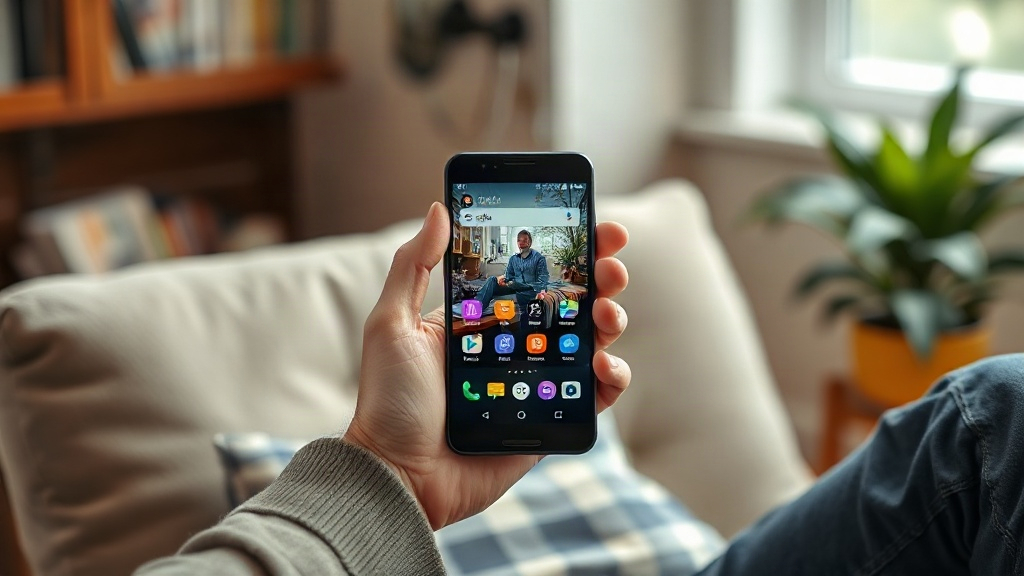
If your parent squints at tiny icons or misses calls because the home screen feels cluttered, this big launcher for android seniors review answers the question you are really asking: can a simpler launcher make a smartphone usable again? Standard Android interfaces assume sharp eyes and steady fingers, and many older adults have neither.
Quick answer: Big Launcher replaces the normal home screen with large tiles, oversized text, and a short list of core actions such as calling, messaging, and emergency help. It matters most for people with low vision, tremor, or memory difficulties. Expect a learning curve of a few days and a paid license for full features.
This review covers what the launcher includes, how it behaves on real hardware, where it falls short, and which users benefit most.
Overview and specifications
Big Launcher is a home-screen replacement for Android phones and tablets. It swaps the standard grid of small app icons for a small number of large, color-coded buttons. Each button opens one function: phone, messages, camera, contacts, SOS, and a few others.
The design follows a simple idea. A user sees fewer choices, and every choice is big enough to tap without precision. Text scales up well beyond stock Android sizes.
| Feature | Detail |
|---|---|
| Platform | Android phones and tablets |
| Core screens | Home, contacts, messages, phone dialer, SOS |
| Text size | Several preset sizes plus custom scaling |
| Colors | Multiple themes with high-contrast options |
| Emergency | SOS button with location sharing |
| Licensing | Free trial, then paid license |
Comparison: Big Launcher vs. stock Android home screen
The table below contrasts the two setups on the points that matter most to older users. Notice how the differences cluster around visibility and touch accuracy rather than raw features.
| Point | Big Launcher | Stock Android |
|---|---|---|
| Icon size | Very large tiles | Small, adjustable icons |
| Visible choices | A handful per screen | Dozens per screen |
| Emergency access | One dedicated button | Requires setup |
| Setup effort | Guided, moderate | Low but limited |
Android offers built-in accessibility tools, including larger fonts and magnification. Those help with reading but do not reduce clutter on the home screen. Big Launcher addresses layout and touch targets together, which is the practical difference for someone who taps the wrong app repeatedly.
Two specification details deserve attention before purchase. The launcher supports multiple languages, which matters for households where a parent reads more comfortably in a native language than in English. It also allows per-device licensing checks, so confirm whether one license covers a phone and a tablet or requires separate purchases.
Physical device size interacts with the software more than buyers expect. A large-tile layout on a compact phone still leaves small gaps between buttons, while the same layout on a 6.5-inch screen gives generous spacing. If your relative already owns a phone, test the trial on that exact device rather than judging from screenshots.
Key features
Each feature below targets a specific difficulty rather than adding general polish. That focus is why the launcher suits a narrow audience so well.
Large-tile home screen
The home screen shows six to eight big buttons by default. Each tile carries a large icon and a plain-language label. A user who struggles with a crowded grid gets a clear starting point every time the screen wakes.
Adjustable text and contrast
Text size and color themes adjust from inside the launcher. High-contrast themes help people with cataracts or glaucoma. You can also change the background color to reduce glare. The settings sit in one menu, so a caregiver can tune everything in a few minutes.
Simplified calling and contacts
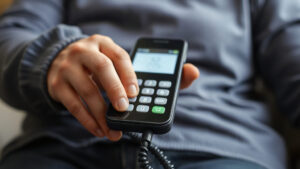
The phone section presents a short favorites list with big photo buttons. Dialing uses an oversized keypad. This design reduces mistaps on small number pads, a common problem for people with tremor or dry skin.
SOS and emergency help
An SOS button can call a preset contact and share location. You configure it once. In a real emergency the user presses one large target instead of unlocking the phone and searching for an app. Test it together before relying on it.
Caregiver and remote setup
A companion option lets a family member configure the launcher and manage settings remotely. This helps when the phone owner lives far away or finds menus confusing.
Confirm the license terms and device compatibility on the official listing before you buy. Prices and plan details change, so verify them on the day of purchase.
Pros and cons
No launcher suits every older user, and honesty about limits matters more than a long feature list. These points reflect how the app behaves in everyday use.
Weigh the cons against the user’s actual habits rather than the feature list. Someone who checks only calls and photos will never miss the extra apps, while a daily weather-checker may find the limited home screen restrictive. Match the tool to the person, not the other way around.
Pros
- Large, uncluttered tiles make the home screen readable without glasses at arm’s length.
- One-tap emergency calling gives families real peace of mind during health scares.
- Photo-based contacts help users with memory loss recognize who they are calling.
- Simple settings let a caregiver finish setup in under fifteen minutes.
- Locked layout prevents accidental deletion of icons, a frequent frustration on stock Android.
Cons
- Paid license limits the free version, so budget for a purchase.
- Fewer apps at a glance frustrates users who want many apps on one screen.
- Occasional glitches after major Android updates can require a reinstall.
- Learning curve of a few days for users switching from a familiar layout.
- Not a medical device, so the SOS feature cannot replace a monitored alert system.
The strongest criticism concerns updates. Because the launcher sits between the user and the operating system, a botched system update can break shortcuts until the app is updated or reinstalled. Keep the Play Store set to auto-update, and check the phone after any major Android version jump.
Performance in practice
Launcher performance on a mid-range phone is snappy. Tiles open within a second on devices with 2 GB of RAM or more. Older budget phones with 1 GB of memory may show brief delays when switching screens, though calls and messages stay responsive.
Battery impact is modest. A launcher runs constantly in the background, yet the large icon interface draws less than an animated wallpaper. Users on phones with small batteries should notice little difference over a day.
Reliability holds up during daily use. Calls connect, contacts load, and the SOS button responds when configured. The clearest weakness appears after Android system updates. Shortcuts may stop working until the launcher receives its own patch, so plan to check the phone within a day of any update.
Accessibility shines in low light and outdoors. Large white text on dark tiles stays legible in bright sun, where stock Android icons wash out. Users with hand tremor report fewer wrong taps because targets are wide and spaced apart.
Install the free version on the actual phone for a week. Watch which buttons your relative uses most, then arrange the paid layout around those habits.
One practical detail: some seniors resist a launcher that feels childish. Large colored tiles can read as a toy to people who value independence. Explain that the layout protects their privacy and independence rather than marking them as incapable.
A useful workaround is to frame the change around speed: fewer steps to call a daughter or reach a doctor. Practical framing, backed by a working SOS test, usually settles the concern faster than reassurance alone.
Who is big launcher for android seniors review for?
This launcher fits a specific profile rather than every older adult. Read the lists below and match them to your situation.
A good fit if the user:
- Has low vision or needs very large text to read the screen
- Struggles with hand tremor or limited fine motor control
- Wants only calls, messages, camera, and emergency access
- Has memory difficulties and benefits from photo contacts
- Lives alone and needs a fast emergency call option
A poor fit if the user:
- Uses many apps daily, such as banking, email, and social media
- Enjoys customizing wallpapers and widgets
- Has a caregiver who cannot help with setup
- Prefers a familiar layout and resists change
Family caregivers often install the launcher themselves. That is fine, but involve the phone owner in choosing tile colors and contacts. Ownership of the layout reduces resistance.
Consider the phone’s existing setup before committing. If a relative already navigates a simplified manufacturer mode with confidence, switching launchers may add confusion without solving a real problem. The app earns its place when the current home screen causes repeated errors, missed calls, or daily frustration.
Timing matters too. Installing during a calm week beats setting it up right after a hospital stay or a move, when stress runs high and patience runs low. Give the user several quiet days to practice before any situation demands that they rely on the new layout.
A launcher changes how someone experiences their phone every day. Ask permission first, then set it up together so the user feels in control.
FAQ
How much does Big Launcher cost?
The app offers a free version with core features, then a one-time or subscription license for the full set. Check the official store listing for current pricing, since plans change. Budget for a single purchase per device.
Can I try it before buying?
Yes. The free tier covers basic calling and a large home screen. Test it on the real phone for a week before paying, so you know whether the layout suits the user.
Does it work on all Android phones?
It runs on most modern Android phones and tablets, but some manufacturer skins restrict home-screen replacements. Install the app, set it as default, and confirm that calls still work. Very old devices may lag.
Will it survive Android updates?
Usually, but not always. Major Android updates occasionally break shortcuts until the launcher patches. Keep auto-update on and check the phone after each system update.
Is the SOS button a replacement for a medical alert system?
No. It is a helpful shortcut, not a monitored service. Anyone with serious health risks should keep a dedicated medical alert device.
Conclusion and verdict
This big launcher for android seniors review points to one clear conclusion: the app solves a real problem for a specific group. It turns a confusing smartphone into a small set of large, obvious buttons. Families gain emergency access, and users gain confidence. The trade-offs are real, including a paid license, fewer apps at a glance, and occasional update glitches.
Buy it for seniors with low vision, tremor, or simple needs, and install it together with them. Skip it for confident, app-heavy users who want a familiar layout.
Start with the free version on the actual phone and watch how it feels for a week. If the tiles reduce wrong taps and anxious scrolling, upgrade to the paid license and set up the SOS contact that same day.