
Squinting at your iPhone is a sign something needs adjusting, and learning how to make text bigger on iphone is easier than most people expect. Maybe a recipe in Safari is unreadable at arm’s length, or an email from your doctor requires a zoom you don’t have. The settings exist, but Apple spreads them across several menus.
Quick answer: Open Settings, tap Display & Brightness, then Text Size, and drag the slider to the right. This changes text in apps that support Dynamic Type. For stubborn apps and older screens, use Accessibility settings such as Larger Text, Bold Text, and Display Zoom.
This guide walks through each option in order, from the basic slider to app-specific controls and bold text. You will know which setting fixes which problem and how to undo a change that made things worse.
What you need before starting
Every step below uses tools already on your iPhone, so nothing needs downloading. Confirm a few details first to save time later.
- A recent iPhone. Text Size and Display Zoom arrived with iOS 7 and later. If your phone runs iOS 15 or newer, every option here is available. On older versions, the menus are named slightly differently.
- A current backup. Changing Display Zoom briefly restarts the screen. A quick iCloud backup protects you if an app misbehaves afterward.
- Your passcode. Settings are open to anyone holding the unlocked phone, so keep it nearby.
- One app to test in. Messages or Notes work well because both honor Dynamic Type. Open them after each change to judge the result.
Charge the phone above halfway before you begin. Display Zoom and Bold Text each trigger a restart, and a device that shuts down mid-boot leaves you waiting at the Apple logo. Plugging in removes the worry entirely.
If you share the phone with a family member, mention the change first. A size you find comfortable may feel enormous to someone else, and knowing who adjusted it saves an argument later.
Know which setting does what
Apple offers three separate controls, and each solves a different problem.
Text Size scales fonts inside apps that support Dynamic Type. Bold Text thickens every character without enlarging the layout. Display Zoom enlarges the entire interface, including icons, buttons, and spacing, not just letters. The accessibility Larger Text switch extends the text slider beyond its normal maximum.
Some apps, particularly third-party games and older banking apps, ignore Dynamic Type entirely. Their text will not grow no matter how far you drag the slider. Zoom and Display Zoom remain your fallbacks there.
Decide how big you actually want it
Going straight to the maximum often makes menus wrap and buttons overflow. Set a moderate size first, try it for a day, then step up. People who read long articles usually settle around one or two steps above the default. People with low vision tend to need the accessibility range plus bold text.
Step-by-step instructions
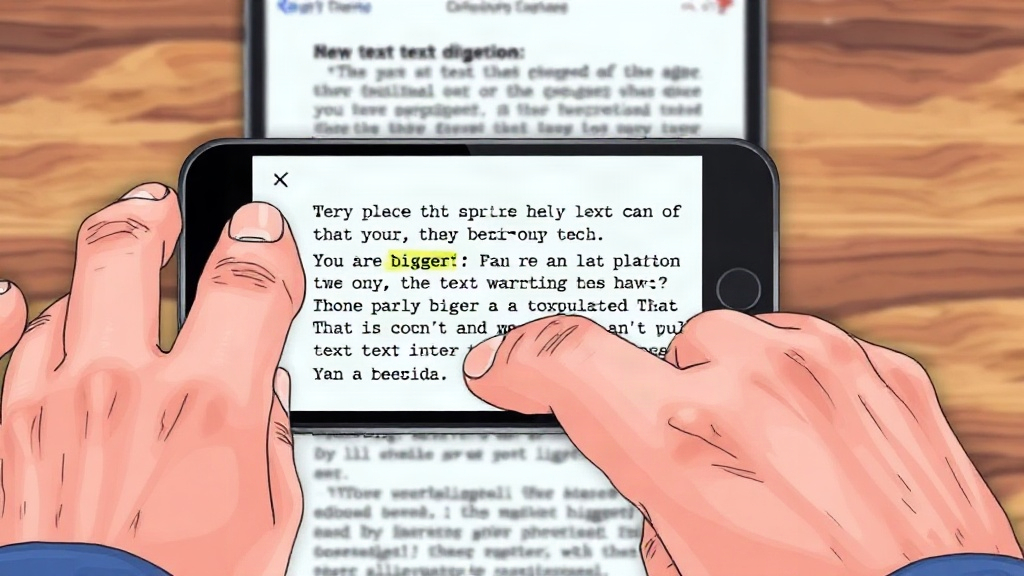
Work through these steps in order and test each one before moving on. The process is repeatable, and every change can be reversed the same way.
- Open Settings and tap Display & Brightness. You will see Text Size as a labeled row with a sample line of text. Tapping it opens the main slider.
- Drag the Text Size slider to the right. The sample text updates live. Release at a size you can read comfortably, then close Settings. Open Messages or Notes to confirm the change carried over.
- Add bold weight if letters still look thin. Go back to Display & Brightness and turn on Bold Text. The phone restarts once. After it boots, labels and body text appear heavier and easier to scan against a bright background.
- Extend the range through Accessibility. Open Settings, tap Accessibility, then Display & Text Size, then Larger Text. Turn on the Larger Accessibility Sizes switch. The slider now reaches sizes well beyond the standard maximum.
- Use per-app text controls where they exist. Some apps offer their own settings. In Safari, tap the aA button in the address bar, then the large A to enlarge page text for that site only. Kindle, Apple Books, and Mail include similar controls inside their reading views.
- Adjust Display Zoom if the whole interface looks cramped. Go to Settings, Display & Brightness, Display Zoom, and choose Larger Text. The screen restarts, icons and buttons grow, and you see fewer items per row.
- Test and refine. Check a message thread, a web page, and the Home Screen. If something overflows, step back one size rather than abandoning the change completely.
Keep the phone plugged in while you work through these steps, and give each restart a full minute before tapping anything. If an app looks unchanged after a size adjustment, close it from the app switcher and reopen it; many apps only read the new setting on launch.
Once you know your preferred size, Control Center can host a Text Size shortcut. Add it through Settings, then Control Center, then tap the accessibility icon whenever you want to enlarge text quickly.
Tips for better results
A few habits make larger text feel natural rather than awkward. These adjustments pair well with any size you choose.
Keep a short note of the exact slider position you settle on, since the sample line does not display a number. If an update or an accidental drag shifts it, you can return to the same spot in seconds instead of guessing. Photographing the Settings screen works just as well as writing it down.
Read in dim light before deciding the size is right. Halved brightness and a dark room reveal whether thin strokes blur together, which is often why people overshoot and then find menus breaking. A size that holds up at night usually serves you well in daylight too.
Increase contrast alongside size
Larger letters help most when the background stays clean. Turning on Increase Contrast in Accessibility sharpens the boundary between text and background. You can also enable Reduce Transparency so text no longer sits on blurred glass effects.
Treat the slider as one part of a larger setup
Font size is the most visible change, but it works best beside related settings. Consider these pairings:
- Bold Text with a mid-range size for everyday reading without menus wrapping.
- Larger Text plus Zoom when you need to inspect a specific form or receipt.
- Display Zoom alone when buttons, not letters, cause the trouble.
Comparison: Text Size vs Display Zoom vs Zoom
These three settings look similar but affect different layers of the screen. Notice that only Display Zoom requires a restart.
| Setting | What it enlarges | Restart needed | Best for |
|---|---|---|---|
| Text Size | Fonts in supported apps | No | Reading messages and articles |
| Display Zoom | Entire interface | Yes | Small buttons and icons |
| Zoom (Accessibility) | Magnified screen region | No | Inspecting photos or forms |
Text Size is the reversible, everyday choice. Display Zoom is a one-time commitment you may want to revisit after a few days.
Set per-app sizes where the option exists
Safari’s aA menu remembers the zoom level for each website you adjust. That means one stubborn news site can stay enlarged without inflating every page you visit. Books and reading apps usually offer font sliders inside the reader, which often work better than the system setting.
Recheck after every iOS update
Major iOS releases occasionally reset display preferences or shift slider positions slightly. Glance at your text size after updating, especially if the phone feels different. It takes ten seconds and prevents a week of squinting.
Common mistakes to avoid
Most frustrations with oversized or undersized text come from a handful of repeatable errors. Recognize them before you start.
Do not confuse the two sliders. The one in Display & Brightness stops at the standard maximum, while the Larger Text slider under Accessibility reaches further. People often drag the first one to its limit, assume nothing more is possible, and never discover the second.
Avoid changing several settings in the same sitting. If you turn on Bold Text, extend the range, and switch Display Zoom all at once, you cannot tell which one caused an app to break. Move one step at a time.
Cranking the slider to maximum immediately
The largest setting wraps labels, cuts off buttons, and pushes content off screen. Start two or three steps above default and go higher only if reading still strains. It is easier to add size than to hunt down every layout that broke.
Blaming the phone when one app ignores the setting
If text grows in Messages but not in a single banking app, the app itself is the limit. Its developers have not adopted Dynamic Type. No system setting will force it. Use Accessibility Zoom for that app and leave the global slider where it is.
Forgetting that Bold Text restarts the phone
The restart is normal, not a crash. Wait for the lock screen, then unlock as usual. Your data is untouched.
Overlooking Display Zoom’s trade-off
Display Zoom shows fewer items on screen. On a smaller iPhone, that can mean an extra swipe for the same content. Some users find the gain in legibility worth it; others revert after a day. Try it with your most-used apps open before deciding.
At the very largest sizes, some apps place buttons partly off screen. If a button becomes unreachable, reduce the text size by one step. Do not keep tapping near the edge, because you may trigger the wrong control.
Changing the size and never testing real content
The Settings preview uses a single line of sample text. Long paragraphs, form fields, and tables behave differently. Always open a full message thread or article before you settle on a size.
Forgetting the per-site Safari zoom
Safari’s page zoom is stored per website. If one site still looks enormous weeks later, revisit the aA menu there and reset it. The system-wide slider is not responsible.
FAQ
Does making text bigger on iPhone cost anything?
No. Every option in this guide is built into iOS and free. You do not need an app, a subscription, or an Apple account beyond the one already on the phone.
Why does text grow in some apps but not others?
Apps must support Dynamic Type to follow the system slider. Apple’s own apps mostly do, while some third-party apps do not. For those, Accessibility Zoom or a per-app font control is the workaround.
Will larger text drain my battery faster?
No measurable effect. Changing font size does not add processing load. Bold Text triggers one restart when enabled, then runs normally.
Can I set a different text size for each app?
Only where the app provides its own control, such as Safari’s per-site zoom or a reading app’s font slider. iOS itself offers one system-wide size, so plan around the app that matters most to you.
How do I undo all the changes?
Return to Settings, Display & Brightness, and drag Text Size back toward the left. Turn off Bold Text, and switch Display Zoom back to Default. Each change reverses independently.
Conclusion
The fastest fix for tiny letters is the Text Size slider in Display & Brightness, and the accessibility Larger Text switch extends it further when you need more. Bold Text adds weight, Display Zoom enlarges the whole interface, and per-app controls handle the exceptions. Test each change with real content, and avoid jumping straight to the maximum.
Start with one modest step up in Text Size, then live with it for a day. Add bold text and a larger range only if reading still strains. If a single app refuses to cooperate, use Zoom there instead of inflating everything else. Small adjustments, checked against real screens, beat one dramatic change every time.